
01Overview
TT Theme Font Editor is a ReaScript for REAPER that finds and changes the font sizes of the currently active theme — without touching the theme itself.
REAPER themes define their fonts in two places: a set of named fonts in the
theme ini file (including the sixteen user_font slots that WALTER, REAPER's
theme layout language, can assign to individual elements), and the rtconfig.txt
file that decides which element uses which font. Finding out "which font
controls this piece of text" by hand means reading rtconfig and guessing.
This script does the guessing for you: it evaluates rtconfig the same way
WALTER does — macros, layouts, scaling, variables and theme parameters — and
tells you which font is responsible for the spot you point at.
The workflow is:
- Point at any text in the REAPER window with the picker.
- The script shows which font (and which element) is responsible.
- Change the size, weight or italic flag; a preview is applied live through a working copy of the theme.
- When you are happy, write the result to a new theme file.
Your original theme is never modified. All editing happens in a working
copy named <Name> (TT-Edit).ReaperTheme (plus an image folder of the same
name) inside your ColorThemes directory. When you bake, the script writes a
new file named <Name> (TimTechlor).ReaperThemeZip for zipped themes, or
<Name> (TimTechlor).ReaperTheme for a plain, unzipped theme — and loads it.
A plain theme that receives element overrides is baked as a
.ReaperThemeZip, because the modified rtconfig has to ship together with
its image folder.
02Requirements and installation
You need:
- REAPER 6.x or newer. The picker relies on
GetThingFromPoint, which older versions do not have. - ReaImGui 0.10 or newer, installed via ReaPack. If it is missing, the script shows "ReaImGui is missing (install it via ReaPack)." and exits.
- js_ReaScriptAPI (the "js_ReaScript API" extension, also via ReaPack).
It is required for zipped themes (
.ReaperThemeZip) and for the mouse tracking the picker uses to lock a spot. Without it, a zipped theme produces "js_ReaScriptAPI missing - cannot read zip". - Optionally, the SWS extension. For areas that have no WALTER element — for example the ruler or empty arrange space — the script can ask SWS for the mouse context and still offer the matching ini font (timeline/ruler or item/take names).
Installation:
- Copy
TT_ThemeFontEditor.luainto your REAPER Scripts folder (or any folder you keep ReaScripts in). - Open the action list (Actions → Show action list), click New action → Load ReaScript, and choose the file.
- Run it like any other action — from the action list, a toolbar button or a shortcut of your choice.
No further setup is needed. On start, the script reads the theme that is active in REAPER right now.
03The window at a glance
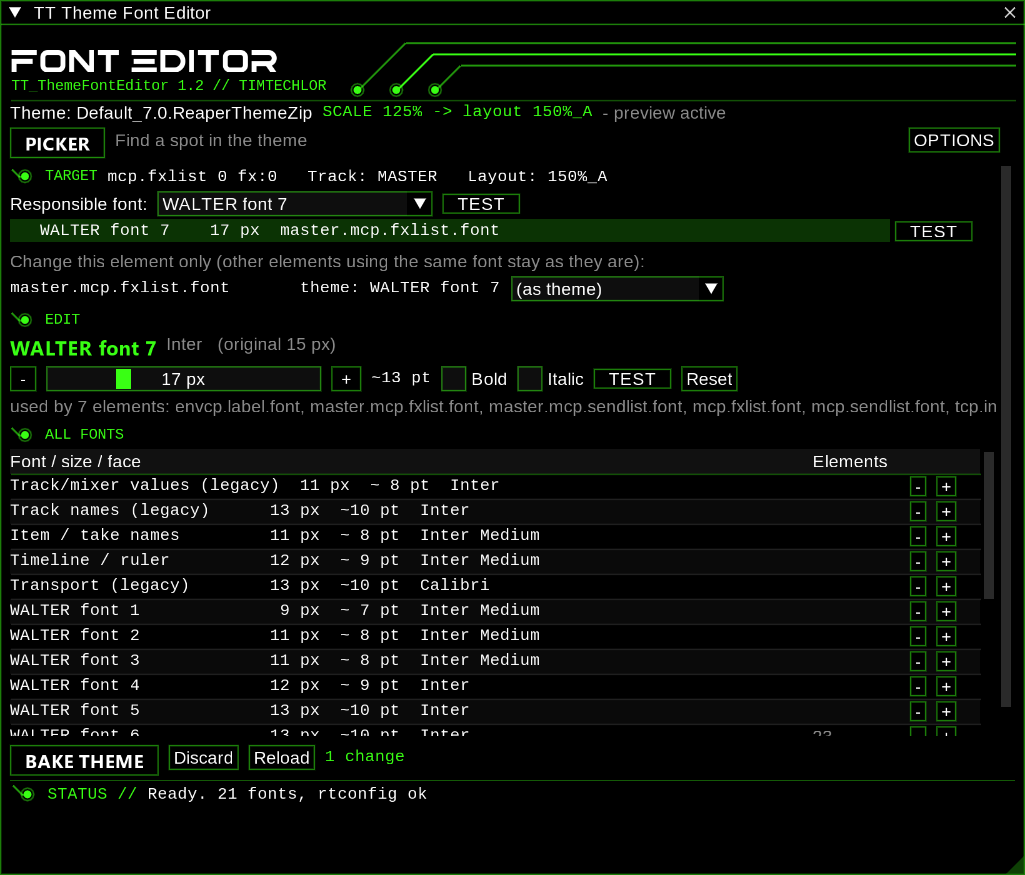
The window is titled TT Theme Font Editor (initial size 800×820, freely resizable). From top to bottom:
- Header. The "FONT EDITOR" brand line with the script name and version ("TT_ThemeFontEditor 1.2 // TIMTECHLOR").
- Theme line. "Theme:" followed by the file the script is actually
reading. Next to it, in acid green,
SCALE x% -> layout y: the UI scale taken from the REAPER preferences (including the DPI factor) and the mixer layout used to compute the fonts. When the preview is running, an additional grey "- preview active" tells you that REAPER is currently showing the working copy. - Picker row. The PICKER button (or Cancel picker while armed) on the left, OPTIONS on the right.
- Body (scrollable). The sections TARGET (after you lock a spot), EDIT (once a font is selected), ALL FONTS and the collapsible ELEMENT OVERRIDES.
- Action bar. BAKE THEME, Discard, Reload and a change counter that may add "(preview pending)".
- STATUS // line. One line of mono text reporting what the script is doing. While a longer job runs (extracting, copying, baking) a progress bar appears above it.
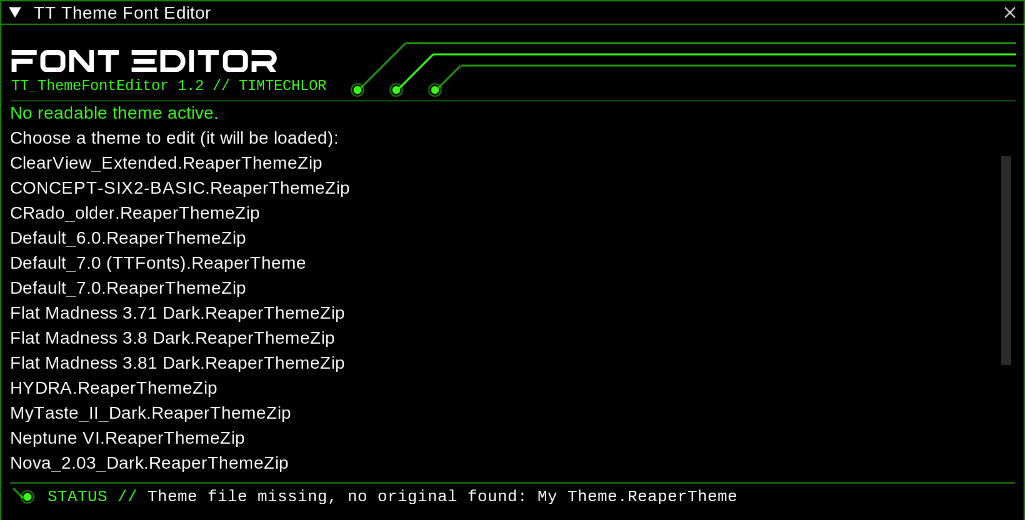
If no readable theme is active when the script starts, the body is replaced by the theme chooser: "No readable theme active." plus a clickable list of the themes in your ColorThemes folder. Choosing one loads it in REAPER and opens it for editing.
04Quick start
- In REAPER, load the theme you want to adjust (Options/Themes or the theme picker of your choice).
- Start TT Theme Font Editor. The status line should read "Ready. N fonts, rtconfig ok" (or "no rtconfig" for themes without one).
- Click PICKER, move the mouse over the text whose size you want to change, and press Shift to lock it (a click works too).
- In TARGET, check the Responsible font:. If the detection looks wrong, pick another font from the combo and verify with TEST.
- In EDIT, use the slider or the - / + buttons to set the size. The preview reloads by itself when you release the mouse.
- Repeat for other spots, or adjust fonts directly in ALL FONTS.
- Click BAKE THEME. The script writes
<Name> (TimTechlor)next to the original, loads it, and removes the working copy. - Done — the original theme file is untouched and still on disk.
05Finding a font with the picker
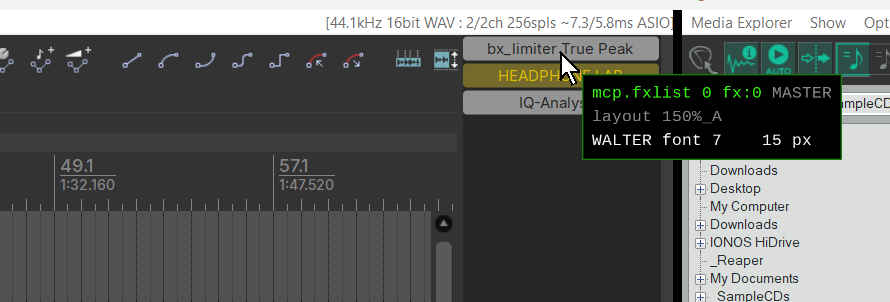
Click PICKER to arm it. While it is armed, a small floating label follows
the mouse everywhere in the REAPER window (it disappears over the editor
window itself). The label shows the hit-test name REAPER reports for that
spot — for example mcp.fxlist 4 fx:4 — plus the track name, the resolved
layout, and the font candidates the script computed for it, or "no theme
font" if there is none.
To lock a spot you have two options:
- Press Shift. This locks without sending a click to REAPER — the safe choice over buttons, faders and other controls that react to clicks.
- Click. Releasing the left mouse button also locks the spot. Mind what you click on.

Cancel picker disarms without locking. Once locked, the result moves into the TARGET section and the first candidate font is selected in EDIT.
Sometimes the TARGET section is marked Coarse. That means REAPER only
reported the area (for example just mcp), not a specific element, so the
script lists every font candidate it could find there. Point more precisely
at the text, or try the candidates one by one with TEST.
Two special cases appear as a note instead of an editable font: elements
whose rtconfig font index is 0 use the theme main font, and index
-1 is the volume/pan font. These are not user_font entries, so they
cannot be edited in the list — the script tells you about them so a
seemingly "wrong" detection does not confuse you.
Spots without a WALTER element still have fonts: pointing at the ruler or
timeline offers Timeline / ruler (tl_font), and items or empty arrange
space offer Item / take names (mi_font).
06The TARGET section

TARGET shows everything the script knows about the locked spot: the raw
hit-test name, the track ("Track: …", MASTER for the master track) and
the layout the resolution ended in ("Layout: …", default when no named
layout applies). If part of the element uses the main font or the
volume/pan font, a note says so.
Responsible font: is the font the script believes controls this spot. The combo contains every font of the theme; the preselected entry is the computed result. If the detection is off — some themes use unusual constructions — choose the right font yourself and verify with TEST. Selecting (automatic) returns to the computed value. Your choice is remembered per theme, so the next time you pick the same spot it is already correct. The status line confirms with "… remembered" or "… automatic again".
Below the combo are the candidates, one row per font found:
- OK marks the font you chose yourself.
- EL marks a font that reaches this spot through an element override (see section 9).
- No marker means the font was computed from the rtconfig.
Each row shows the font name, its pixel size, the element it came from and —
if the element gets its font through a WALTER variable such as main_font —
the variable name ("= main_font"). Clicking a row selects that font for
editing; each row has its own TEST button.
If the theme sets no font of its own at the locked spot, TARGET says so and suggests pointing more precisely or choosing from the list below.
When the spot has a handful of elements (up to six), TARGET also offers "Change this element only (other elements using the same font stay as they are)": one row per element with the font the theme computed and a combo to assign it a different WALTER font. This writes an element override — see section 9 for what exactly that does.
07Editing a font (EDIT section)

EDIT appears as soon as a font is selected — from a picker candidate or by clicking a row in ALL FONTS. The heading shows the font name, its face name and the original size ("original N px") for comparison.
- - and + change the size by one pixel.
- The slider sets the size directly (6–48 px). Ctrl+click it to type a value. The preview does not reload while you drag; it applies when you release the mouse.
- The ~N pt readout converts the pixel height to approximate points. REAPER stores font heights in pixels; the point value is only a rough orientation (px × 0.75), so trust the preview, not the number.
- Bold switches the font weight between regular and bold. Italic toggles the italic flag.
- TEST / TEST OFF runs the identification test described below.
- Reset appears once the font differs from the original theme and restores exactly that original value.
Under the controls, "used by N elements: …" lists the WALTER elements of the default layout that use this font (hover it for the full list). This is the best sanity check before changing a size: a font shared by forty elements will move forty things at once — element overrides exist for the cases where that is too much.
The TEST button (also next to the responsible font and each candidate) temporarily renders that one font much larger and bold — double size, at least +10 px, weight 800 — in the preview, so you can see at a glance where in the REAPER window it appears. It is a preview-only trick; nothing is written permanently, and pressing TEST OFF (or baking) ends it.
08The ALL FONTS list
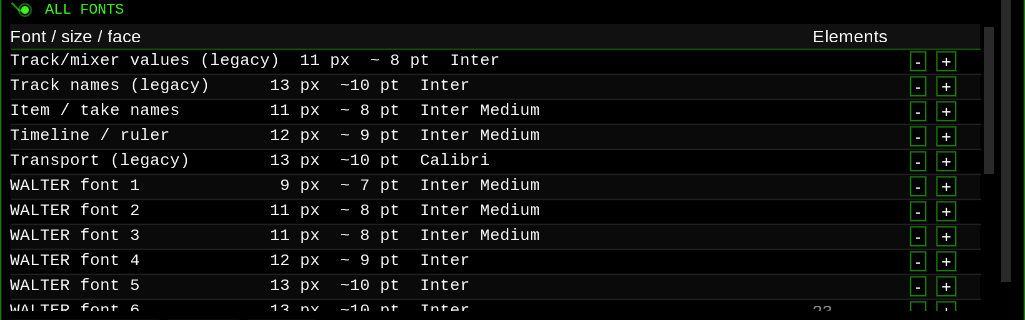
ALL FONTS is a scrollable table of every font defined in the theme ini:
the sixteen user_font slots (shown as "WALTER font 1" … "WALTER font 16")
plus named ini fonts such as Timeline / ruler, Item / take names and
the legacy track, mixer and transport fonts.
Columns:
- Font / size / face — name, pixel size, approximate points, face name,
a "bold" tag when the weight is bold, and a
*when the font differs from the original theme. - Elements — how many elements of the default layout use the font; hover the number for the list.
- The unnamed last column holds quick - / + buttons for one-pixel steps without opening EDIT.
Clicking a row selects the font and opens it in EDIT above.
09Element overrides
Sometimes a font is shared by elements you do not want to touch — changing the font would move all of them. Element overrides solve this by reassigning one single element to a different font slot, leaving the shared font and everything else unchanged.
Technically, the script appends a line to the working copy's rtconfig after
every set <elem> … line for that element:
set <elem>.font [N . . . . . . .] ; TTFE
Only the first vector component — the font index — is replaced; the .
placeholders keep the rest of the vector (row heights, column widths and so
on) exactly as the theme computed them. Because the line is added at every
occurrence, the override applies to all layouts and all scale steps at
once.
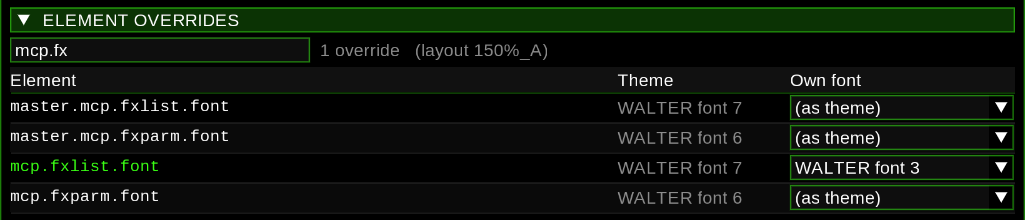
The ELEMENT OVERRIDES section lists all elements of the default layout
that have a font assigned at all. Use the filter box ("Filter, e.g.
mcp.fx") to narrow the list by substring; the header line counts the active
overrides and names the layout the list is based on. For each element the
Theme column shows the computed font ("main font" or "vol/pan" for the
special indices), and the Own font combo assigns a WALTER font —
choosing (as theme) removes the override again. Elements with an active
override are drawn in acid green. Only user_font entries (the sixteen
WALTER fonts) can be assigned; choosing an ini font is rejected with
"Only WALTER fonts can be assigned to elements".
Two things to know:
- Overrides need a theme with an rtconfig and an image folder (a zipped theme or a plain theme with its folder). Otherwise the section reads "This theme has no rtconfig - no elements." and assigning one reports "Element overrides need a theme with rtconfig".
- Changing an override rewrites the rtconfig, and REAPER does not re-read the rtconfig when the same theme file is loaded again. The script works around this by briefly loading the original and then the working copy — so the first preview after an override change takes roughly twice as long as a plain font change. That is normal.
10Live preview
Every change is previewed live. The mechanism is a working copy:
- The script writes
<Name> (TT-Edit).ReaperThemeplus, when needed, an image folder of the same name into the ColorThemes directory, and loads that file in REAPER. The theme line shows "- preview active" while it is up. - Changes are debounced: they are collected for about a third of a second and only applied once you stop editing — and never while the mouse button is held, so a slider drag applies when you release it. Until then the counter shows "(preview pending)".
- The first preview for a zipped or folder-based theme needs the image folder once: the zip is extracted (or the folder copied) into the working folder. This happens in small slices — you will see a progress bar and "Preparing working copy (one time only) …" — so REAPER does not freeze. A marker file remembers the result, so later sessions skip this step unless the source theme changed.

A reload takes a moment because REAPER re-reads and redraws the whole theme. The status line reports the result, e.g. "Preview active (3 changes, reload 420 ms)". Your per-theme settings and layout choices are carried over to the working copy and restored across each reload, so the preview looks like your setup, not a default one.
Note on names: the working copy name is sanitized to plain ASCII, because REAPER resolves a plain theme's image folder reliably only then. Typographic dashes and quotes become their plain ASCII forms, any other non-ASCII character becomes an underscore — the baked file uses the same sanitized stem.
11Baking and discarding
BAKE THEME (enabled once there is at least one change, and disabled while a job runs) writes the final theme:
- Zipped theme in →
<Name> (TimTechlor).ReaperThemeZipout. All original entries are copied; the theme ini entry is replaced by the patched one, and the rtconfig entry too if overrides exist. - Plain theme without overrides →
<Name> (TimTechlor).ReaperTheme. Only a new ini is written; it keeps referencing the original image folder. - Plain theme with overrides → also a
.ReaperThemeZip, assembled from the working folder so ini, rtconfig and images stay together.
Hovering BAKE THEME shows the exact target file name in a tooltip.
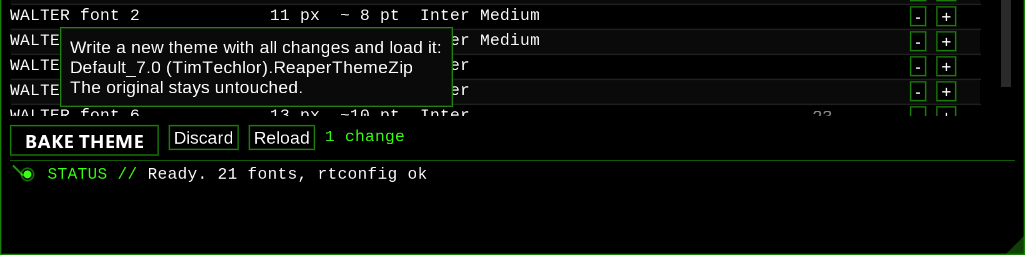
Baking runs as a sliced job with a progress bar. Afterwards the script copies your per-theme settings to the new name, loads the new theme, and removes the working copy. The status line ends at "Baked: …".
Two fallbacks protect the write: if the target file exists and is currently
loaded in REAPER, the script switches to the preview first to release the
file lock; and if renaming the finished file still fails (locked by another
program), it is saved under a time-stamped name such as
<Name> (TimTechlor 142350).ReaperThemeZip instead of failing.
Discard throws everything away: all fonts return to the original values, all overrides are cleared, and the original theme is loaded again ("Discarded - original active."). The prepared working folder is kept, so the next preview starts quickly.
Reload re-reads whatever theme is active in REAPER — use it after switching themes or changing the UI scale in the preferences, because both change which fonts and layouts the script must evaluate.
Closing the window does not undo anything: if you close it with unsaved changes while the preview is active, the working copy simply stays loaded — a note goes to the log, and the next script run picks up that state again.
12Options
OPTIONS (top right) opens a small popup for the editor window itself — these settings affect the script's GUI, not the theme:
- Font — the text font for labels and buttons (Liberation Sans, Segoe UI, Arial, Verdana, Tahoma, Calibri, Inter).
- Size — its size, 10–22 px.
- Table font — the fixed-width font for tables and the status line (Liberation Mono, Consolas, Cascadia Mono, Courier New, Lucida Console).
- Size — its size, 9–20 px.
- Defaults — back to Liberation Sans 14 / Liberation Mono 13.
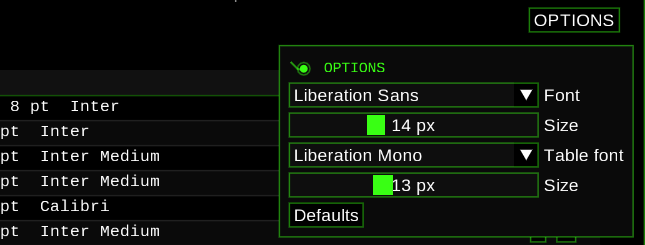
All four settings are stored per REAPER installation and restored on the next start.
13WALTER fonts explained
You do not need to know WALTER to use this script, but a short map of what happens under the hood explains the names you see:
- A theme ini contains font definitions as hex blobs (
user_font0…user_font15, plus named entries liketl_fontormi_font). Each blob encodes height in pixels (negative heights mean character height), weight, italic flag and face name — the fields EDIT exposes. - In rtconfig,
set tcp.label.font [3 …]assigns a WALTER font index. The indices map as follows:
| WALTER index | Theme ini key | Shown in the editor as |
|---|---|---|
| 1 … 16 | user_font0 … user_font15 |
WALTER font 1 … 16 |
| 0 | — | theme main font (note only) |
| -1 | — | volume/pan font (note only) |
- To learn which index an element uses, the script evaluates rtconfig the
way WALTER does: macros (including parameter substitution and
##concatenation), nested layout blocks (a layout inherits the default lines plus its parent layouts plus its own),setlines in file order, arithmetic and conditionals, variables such asscaleandos_type, and theme parameters (define_parameter), with your current parameter values from the Theme Adjuster applied on top. Elements that get their font through a font variable (main_font,list_font,trans_font,header_font) show it as "= variablename". - Scaling: the effective scale is the UI scale from the REAPER preferences
multiplied by the monitor's DPI factor. REAPER themes ship layout
variants for the steps 100 %, 150 % and 200 %, and REAPER always uses the
next step up — so 125 % UI scale is rendered with the 150 % layouts,
and the script evaluates those (a layout tagged
150, e.g.150%_A). That is whatSCALE 125% -> layout 150%_Aon the theme line means. - For a picked element the script resolves which layout applies: the
track's own layout (or the section default), the
master_variants for the master track, and the matching scale-step layout above 100 %. Layout names the rtconfig does not define fall back to the default layout, so the scale step is still applied.
14Troubleshooting / FAQ
The window says "No readable theme active." Either no theme is loaded or its file could not be read. Pick a theme from the list shown — it will be loaded and opened for editing.
"js_ReaScriptAPI missing - cannot read zip"
The active theme is a .ReaperThemeZip and the js_ReaScriptAPI extension
is not installed. Install it via ReaPack and restart the script.
"ReaImGui is missing (install it via ReaPack)." Install ReaImGui via ReaPack (it must be version 0.10 or newer).
The picker does nothing / reports "The picker needs REAPER 6.x+".
The picker needs GetThingFromPoint (REAPER 6.x+) and, for locking,
js_ReaScriptAPI. Without the latter the hover label may still appear but
Shift/click will not lock.
The picker shows the wrong font for a spot. Detection is computed, not guaranteed — exotic rtconfig constructs can mislead it. Choose the correct font in Responsible font: and verify with TEST; the choice is remembered for that theme. Also check the Coarse hint: when REAPER only reports an area, several candidates are listed and only TEST tells which one is right.
A spot shows "no theme font" or an empty candidate list.
The theme sets no user_font there — it may use the main font (index 0)
or the volume/pan font (index -1), which are shown as a note and cannot be
edited. Ruler and item texts are ini fonts and do appear in ALL FONTS.
The preview is not updating. Check the counter: "(preview pending)" means the debounce is still waiting or the mouse is held — release the slider. The very first preview for a zipped/folder theme first runs the one-time extraction (progress bar). Errors appear in the STATUS line and the log.
"Warning: working copy of the older TT_ThemeFonts script - rtconfig is modified." The active theme is a working copy made by the older TT_ThemeFonts script, which rewrote rtconfig and may have lost scaling terms. Use the Load original button next to the warning to switch to the unmodified original; font changes in the old copy are not carried over.
"Theme file missing, no original found" / "Active theme '…' missing - reading '…'". REAPER reported a theme path that no longer exists (renamed, moved). The script falls back to a theme of the same base name in the ColorThemes folder; the second message tells you it did so. If no match exists, the first message appears — load the theme manually and press Reload.
Baking produced a file with a timestamp in its name.
The intended target file was locked (typically because it was the loaded
theme or open in another program). The result was saved as
<Name> (TimTechlor HHMMSS).ReaperThemeZip — load it manually or remove
the lock and bake again.
Element overrides seem slow to preview. Expected: a changed override rewrites rtconfig, and REAPER will not re-read rtconfig on a same-path reload, so the script loads the original briefly and then the working copy — roughly twice the reload time.
I closed the window and the theme still says "(TT-Edit)". Closing does not discard; the preview stays active. Run the script again and use Discard (or BAKE THEME), or simply pick another theme in REAPER.
Where is the log file?
<REAPER resource path>/tt_themefonteditor_log.txt — open it via
Options → "Show REAPER resource path in explorer/finder". It records theme
detection, picker results, status changes and errors, and is cleared on
each script start.