01Overview
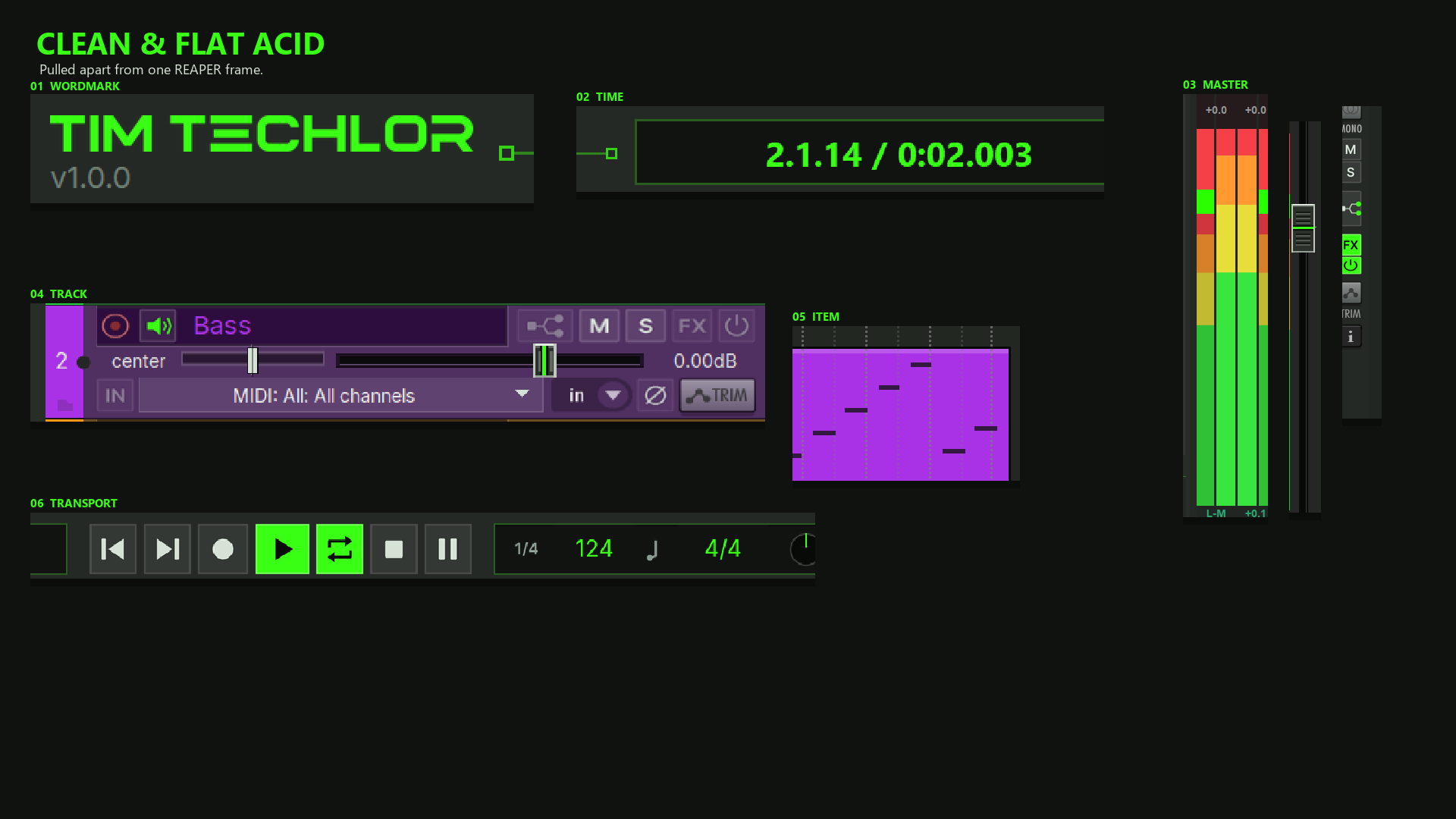
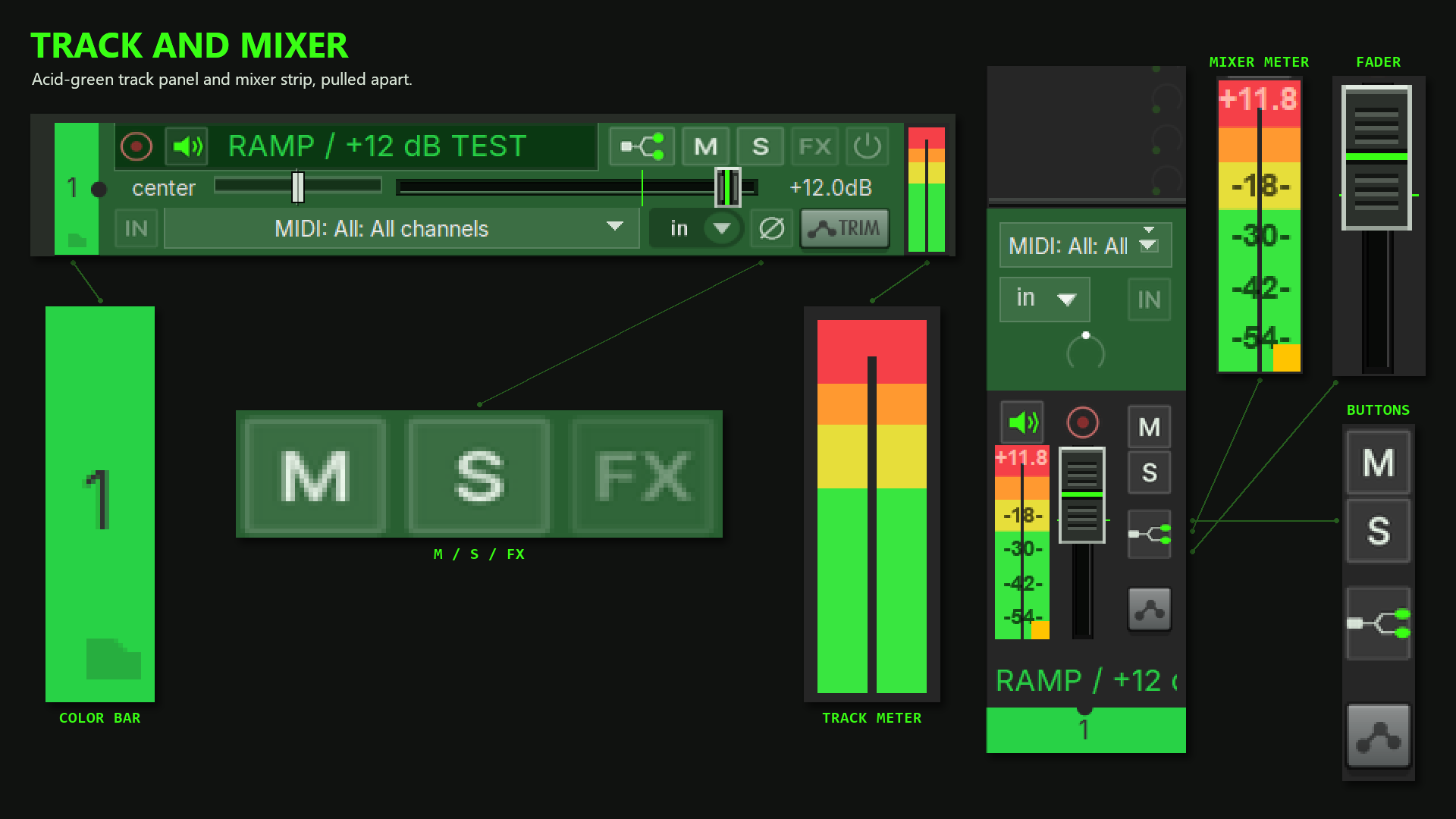
Clean & Flat Acid is a REAPER theme in the look of the Tim Techlor audio plugins: dark graphite surfaces that can be lifted from black to slate grey, one acid green accent colour for everything active, flat square buttons, and text set in the Inter typeface at a comfortable base size of 14 px. It is built on top of Default 7.0 — everything Default does, this theme does too, with the track panel and mixer redrawn in the Tim Techlor style.
Two parts belong together:
- The theme (
Clean & Flat Acid by Tim Techlor.ReaperThemeZip) — colours, buttons, layouts, item and MIDI note colours. Install it like any REAPER theme. - The TT Theme Adjuster (
TT_ThemeAdjuster.lua, this manual documents version 1.0.0) — a ReaImGui script that changes the theme live while REAPER runs: background brightness and tint, grid contrast, the accent colour scheme, item brightness, track colours, font sizes and the REAPER UI scale. Colours and layout parameters change live; a theme file is written only by BAKE THEME and by APPLY FONTS (font sizes need a rewritten theme file).
This archive is the release. It is not listed on ReaPack, and it is not a separate download on the website. The manual you are reading ships inside the same ZIP as the theme.
The theme is a modification of REAPER's Default 7.0 theme by Cockos.
That theme, including rtconfig.txt, is under the LGPL v2 or
later (lgpl.html). The
notice stays in the theme file. The adjuster scripts are Tim Techlor's own.
02Requirements and installation
Quick start: first three steps
- Load the theme. Copy
Clean & Flat Acid by Tim Techlor.ReaperThemeZipinto your REAPERColorThemesfolder and select Clean & Flat Acid by Tim Techlor under Options → Themes. - Open the Theme Adjuster. Load
Scripts/Cockos/Tim Techlor_theme_adjuster.luaonce (Actions → Show action list → New action → Load ReaScript). After that, Options → Themes → Theme Adjuster / Color Controls opens it while Clean & Flat Acid by Tim Techlor or Clean & Flat Acid (Adjusted) is selected.Scripts/TimTechlor/TT_ThemeAdjuster.luais the same window. From there you set background lift, grid contrast, the accent scheme (including the calmer ACID DARK variant), item brightness, track colours and font sizes live. - Persist your settings across restarts. Either press
BAKE THEME once (writes a permanent
Clean & Flat Acid (Adjusted).ReaperThemefile; select it once in Options → Themes) or registerTT_ThemeAdjuster_Apply.luaas your SWS global startup action (Extensions → Startup actions → Set global startup action, or call it fromScripts/__startup.lua) so live colours and layout parameters are restored silently on every REAPER start. If the selection frame or the logo watermark was switched on, the startup action keeps drawing them. It does not open a window. To return to the unmodified factory look at any time, click UNDO ALL in the adjuster or select Clean & Flat Acid by Tim Techlor in Options → Themes. UNDO ALL does not reset the REAPER UI scale or track colours you assigned.
Requirements and extension dependencies
- REAPER 7.x (built and verified against 7.81). The theme uses the layout and image features of the REAPER 7 theme system.
- The Inter typeface. The theme's UI text is set in Inter, which REAPER 7 ships with (Regular and Medium), so no separate install is needed. Verified on Windows with an additional system-wide Inter of an older version installed; a machine without any system Inter was not checked.
- ReaImGui 0.10 or newer (via ReaPack, mandatory for the
adjuster window) — draws the UI-Kit-7 surface of
TT_ThemeAdjuster.lua. Not needed by the silent startup scriptTT_ThemeAdjuster_Apply.lua. - js_ReaScriptAPI (via ReaPack) — required to read the
.ReaperThemeZiparchive when baking a theme (BAKE THEME) or scaling font groups (APPLY FONTS), and required for the optional SELECTION FRAME and LOGO WATERMARK arrange overlays. - SWS extension — required for the global REAPER
UI SCALE buttons (100/125/150/200 % via
SNM_SetDoubleConfigVar("uiscale")) and for settingTT_ThemeAdjuster_Apply.luaas a global startup action.
Installing the theme:
- Copy
Clean & Flat Acid by Tim Techlor.ReaperThemeZipinto theColorThemesfolder of your REAPER resource path (in REAPER: Options → Show REAPER resource path in explorer/finder). - Open Options → Themes (or the theme picker) and choose Clean & Flat Acid by Tim Techlor.
Installing the adjuster:
- Copy the
Scriptsfolder from the package into the REAPER resource path, so thatScripts/Cockos/Tim Techlor_theme_adjuster.luaandScripts/TimTechlor/TT_ThemeAdjuster.lua(plusTT_ThemeAdjuster_Apply.luaandTT_Logo_T.png) are both in place. - Open the action list (Actions → Show action list), click
New action → Load ReaScript, and choose
Tim Techlor_theme_adjuster.lua. Load it once. While this theme is selected, Options → Themes → Theme Adjuster / Color Controls runs it.TT_ThemeAdjuster.luaopens the same window if you want it on a toolbar.
A colour-blind friendly variant of the MIDI note colours
(the file beside the theme zip whose name ends in note colors (colorblind).png, Okabe-Ito palette)
ships next to the theme ZIP. The theme itself already contains
midi_note_colormap.png. To use the colour-blind map, open
Options → Preferences, search for colormap, set
Default note colormap to that PNG and press Apply. If an
open MIDI editor keeps the old colours, restart REAPER. Clear the preference
to return to the map inside the theme. The preference applies to every theme,
not only Clean & Flat Acid.
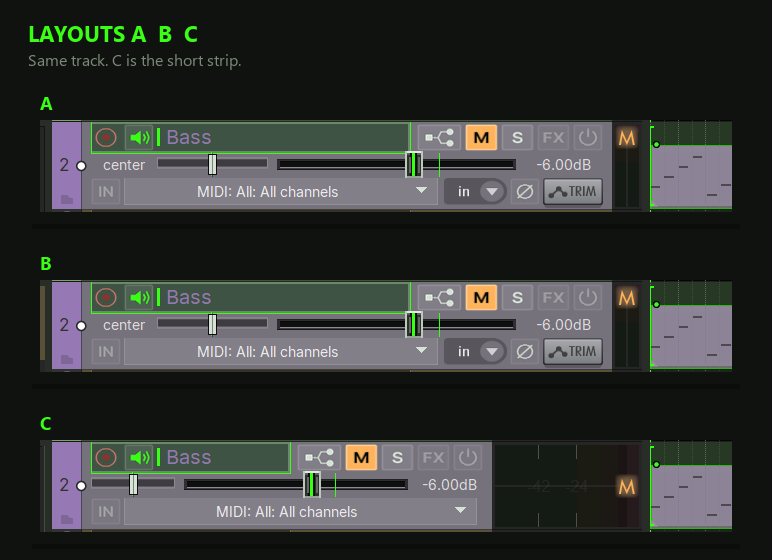
03Layouts A/B/C
The theme ships three layouts for the track control panel and the mixer.
REAPER switches them per track (track context menu → track layout) or globally
(ThemeLayout_SetLayout("tcp"/"mcp", …)); all three work at every
track height and width that REAPER offers.
- Layout A — the standard layout: record arm, name, mute/solo/FX in the top row, pan and volume below, input/phase/envelope row when the track is tall enough.
- Layout B — narrow: a compact strip with a 20 px meter and no meter readout, for dense sessions.
- Layout C — verbose: adds a sidebar with the extra rows (input, phase, envelope, record mode) so nothing is hidden.
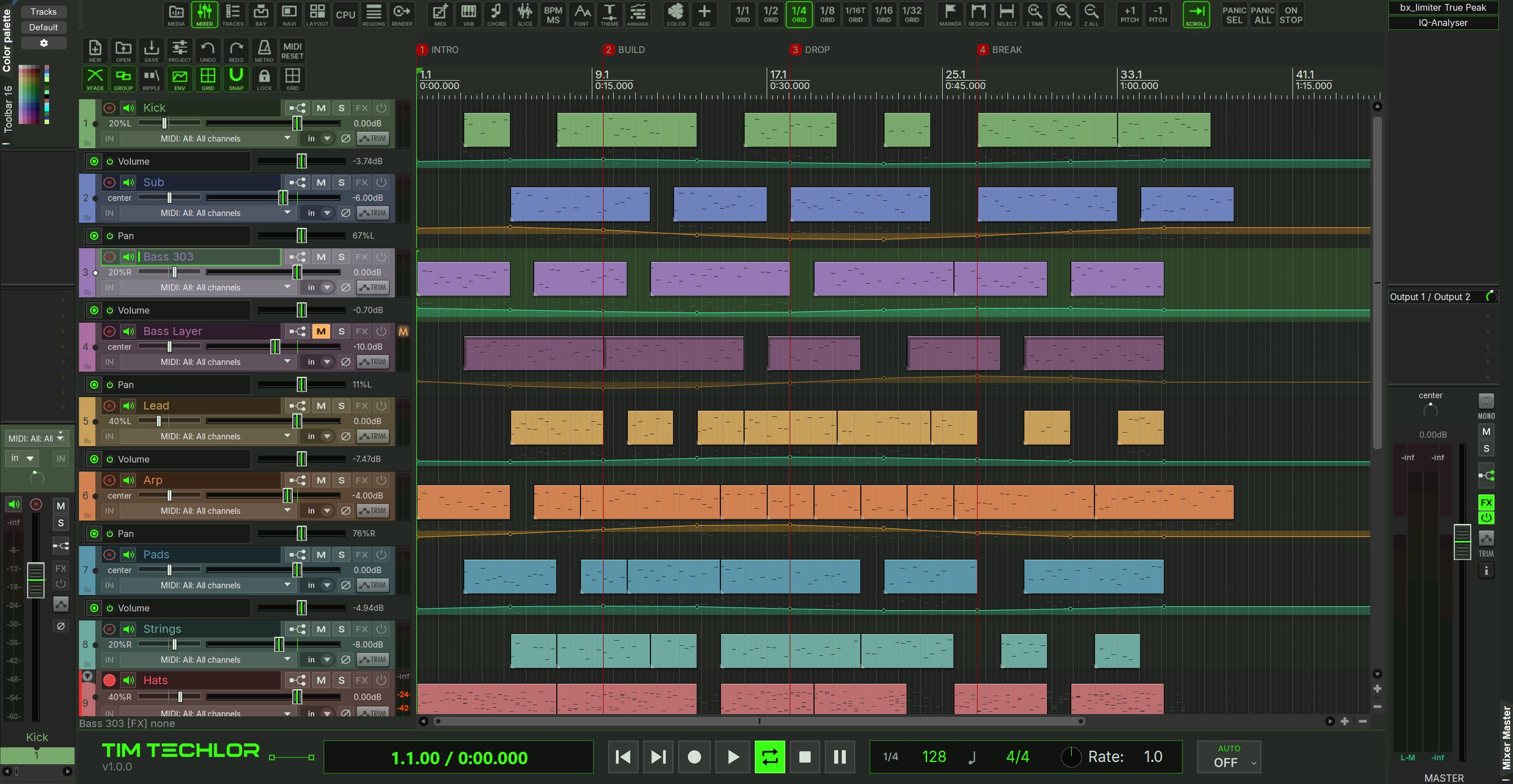
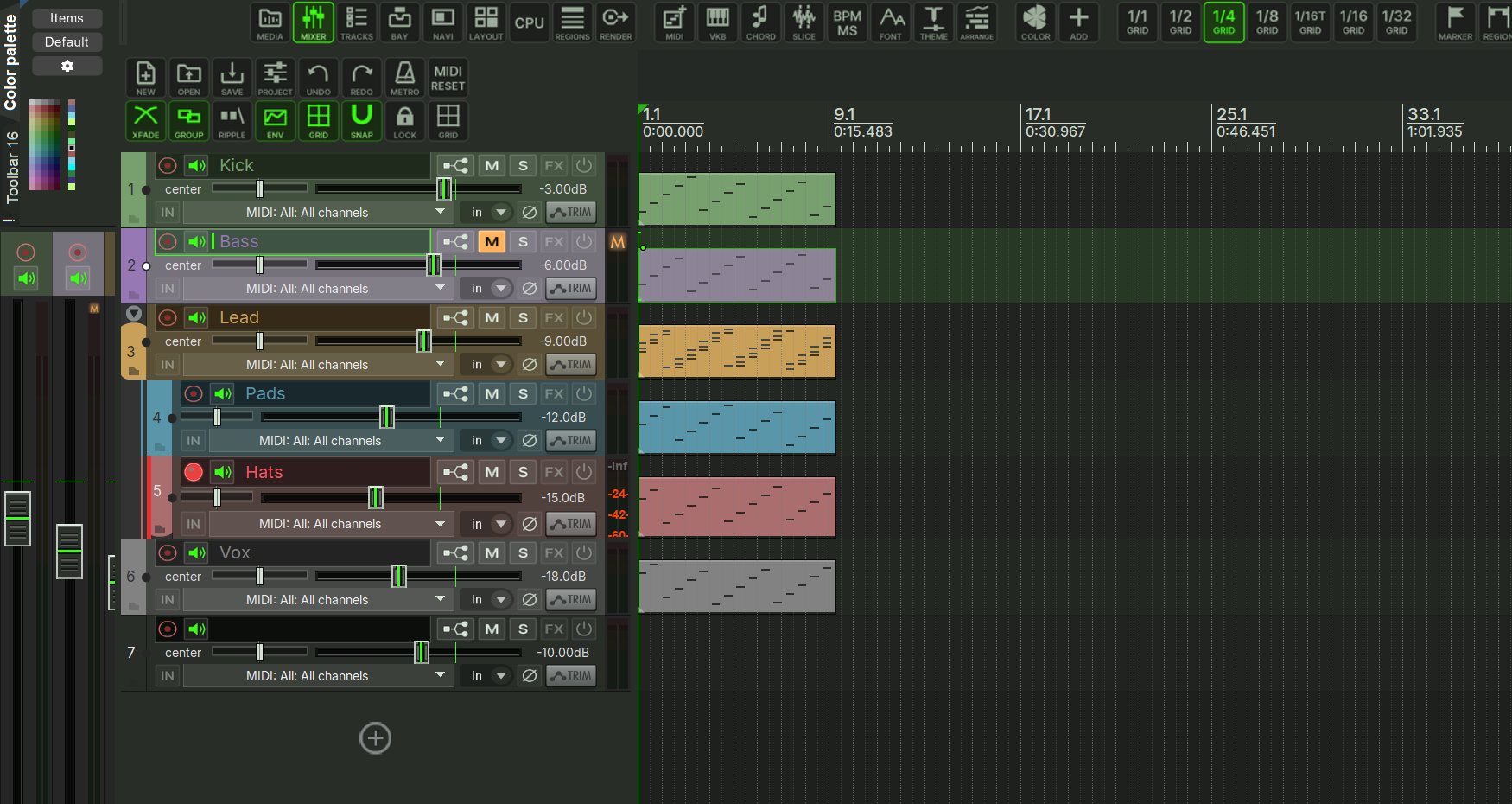
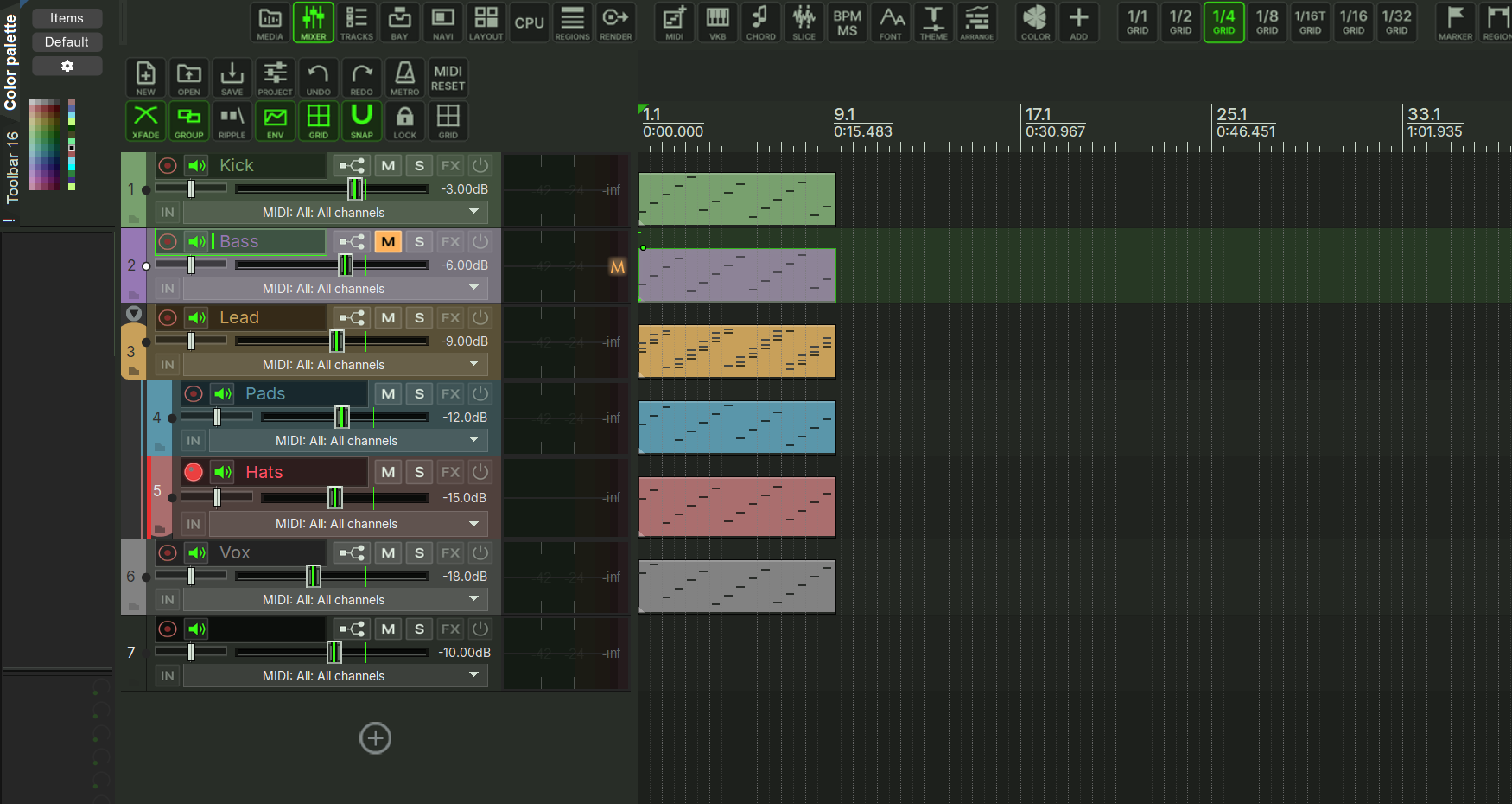
Each layout also exists in the 150 % and 200 % variants REAPER uses above 100 % UI scale, including the envelope control panels. (REAPER renders the 100 % images up to a scale of 1.33; from 1.34 on it switches to the 150 % set.)
04The look
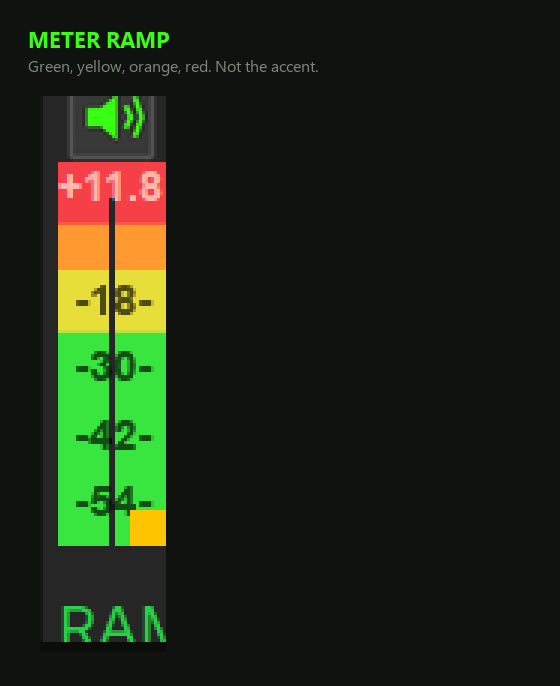
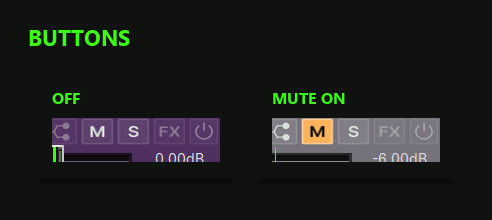
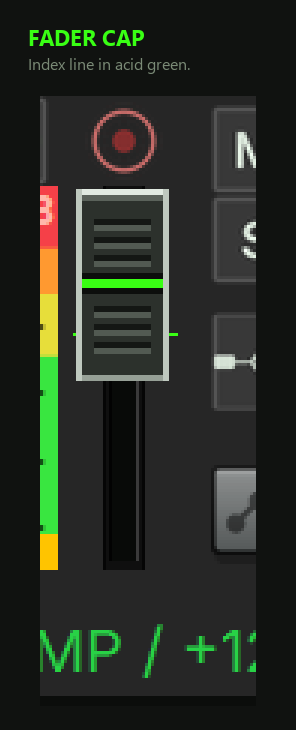
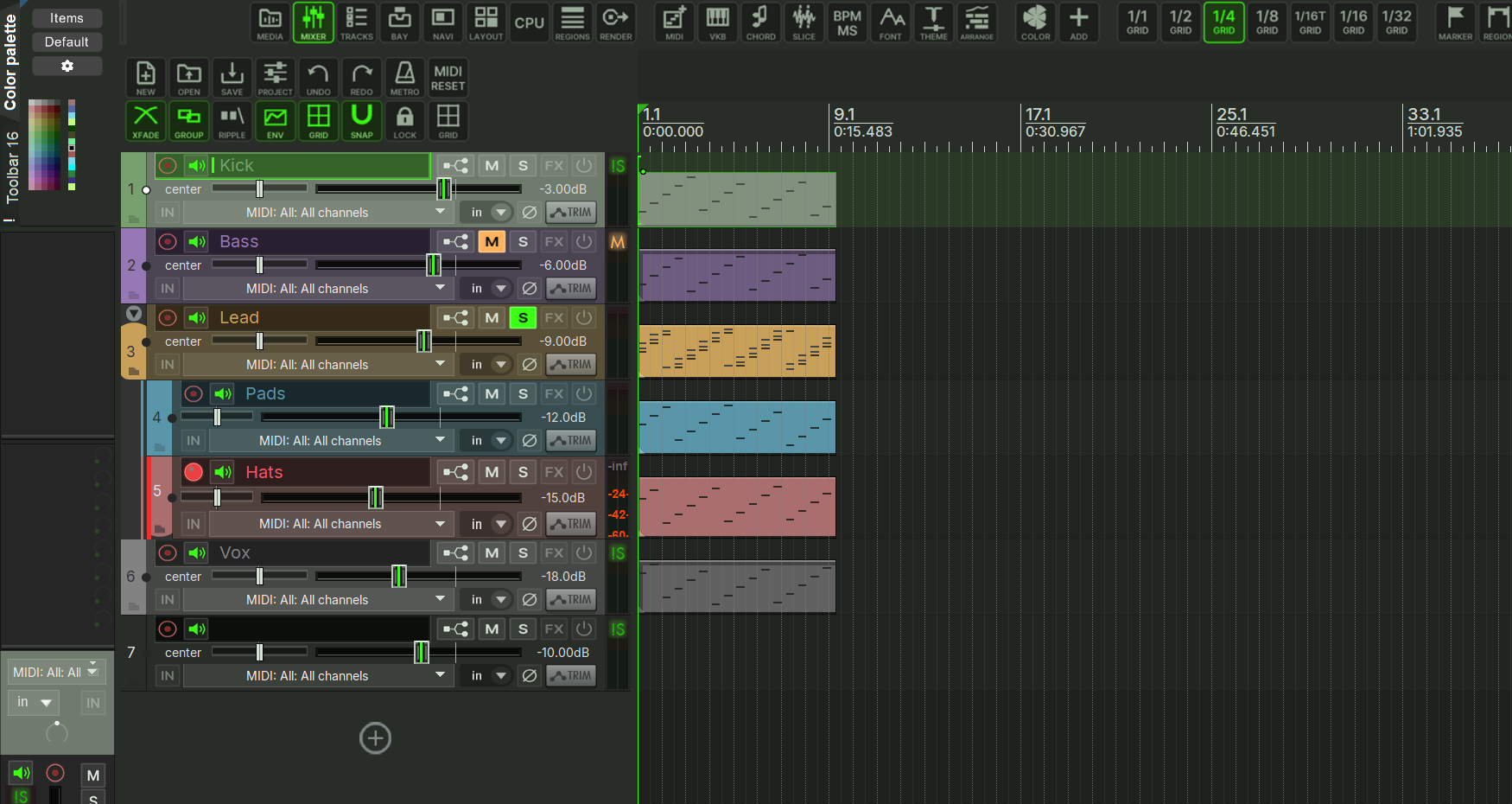
The design follows a few fixed rules, so you can read track state at a glance. The pictures under the list are crops of the REAPER frame, not redraws.
 |
 |
 |
 |
 |
 |
- State colours. Controls are grey when off. Everything
active is acid green (
#39FF14). Mute is amber, record arm is red (the record button stays round, everything else is square). Solo in the screenshots shows the same accent logic. - Flat, square buttons. Mute, solo, FX, I/O, phase, monitor and record are flat three-state sprites (off/hover/on) with square corners — no gloss. The transport bar follows the look of the Tim Techlor plugins: the TIM TECHLOR wordmark with the theme version on the left, linked by a thin circuit trace to a recessed display that shows the position in the accent colour. The square transport buttons sit on the same baseline; hovering outlines them in the accent, play and repeat light up in full accent, record in red. Tempo, time signature and play rate share one second display with fine accent dividers; the tap/basis note and the timebase symbol sit inside it. The automation mode is a matching square button (READ, TOUCH, LATCH, TRIM and PREVIEW in accent, WRITE in red). A one-pixel accent line marks the top edge. Native relief borders are disabled. The default docked height is 48 design pixels; existing dock heights remain usable. Time-selection information can use a second row in taller windows. When space is short the wordmark goes first, then the optional fields; position and tempo stay visible.
- Level meters use fixed green, yellow, orange and red zones for peak and RMS, horizontal and vertical, including record-armed tracks. Clip indicators are red. These functional colours do not change with the accent scheme. The zones follow the meter length; their dB positions depend on REAPER's meter range and display curve settings.
- Graphite surfaces. The background is a lifted graphite; arrange, track panels, borders and hover states sit on evenly spaced brightness steps. How far the whole scheme is lifted from black is exactly what the adjuster's BG LIFT control changes.
- Text. UI text is Inter, base size 14 px, with dimmed-but-readable secondary text. Contrast was checked against the theme's own brightest track colours (see CONTRAST CHECK in the adjuster).
- Toolbar icons are 40 px tiles with a symbol and a short caption (or two lines of text, like PANIC SEL): grey at rest, bright on hover, acid green on a dark green tile when active. The theme also replaces REAPER's own toolbar icons, so default buttons match; REAPER sizes the buttons to the icons.
The brand wordmark itself (Zilap Orion) appears only as an image, never as a font you have to install — outside the watermark option in the adjuster, the theme itself carries no lettering of its own.
05Items and MIDI notes
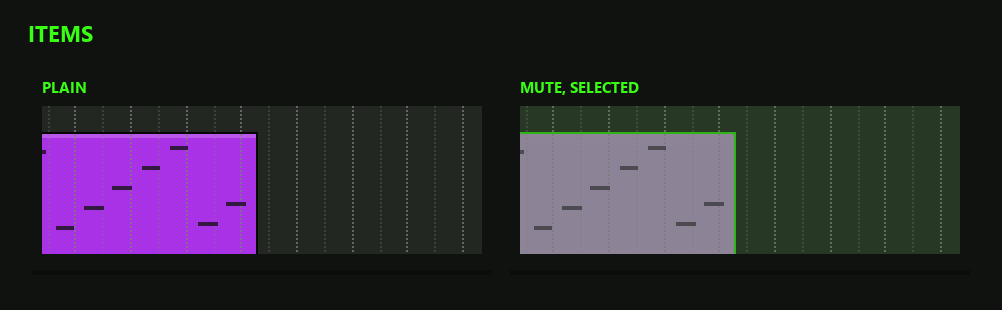
A design rule of this theme: media items and MIDI notes must stay clearly visible in every state — selected and unselected, on coloured tracks, on muted tracks.
- Unselected items have a solid body with at least 3:1 contrast against even the brightest track colour the palette can produce; selected items get a brighter body plus a one-pixel accent frame, so selection is visible without reading anything.
- Muted tracks do not swallow their items: the mute overlay is a translucent amber veil (alpha 90 of 255), not a solid fill — waveform and item edges stay readable.
- Group highlight (items highlighted because a group mate is edited) uses the accent colour.
- MIDI notes use a colour map with one hue per MIDI channel; every note colour reaches at least 4.5:1 against the editor lanes, muted notes at least 3:1. Selected notes are drawn lighter with a white frame; muted notes are amber by default (red if you switch that off in the adjuster). A colour-blind friendly Okabe-Ito variant of the map ships as a separate file (see installation).
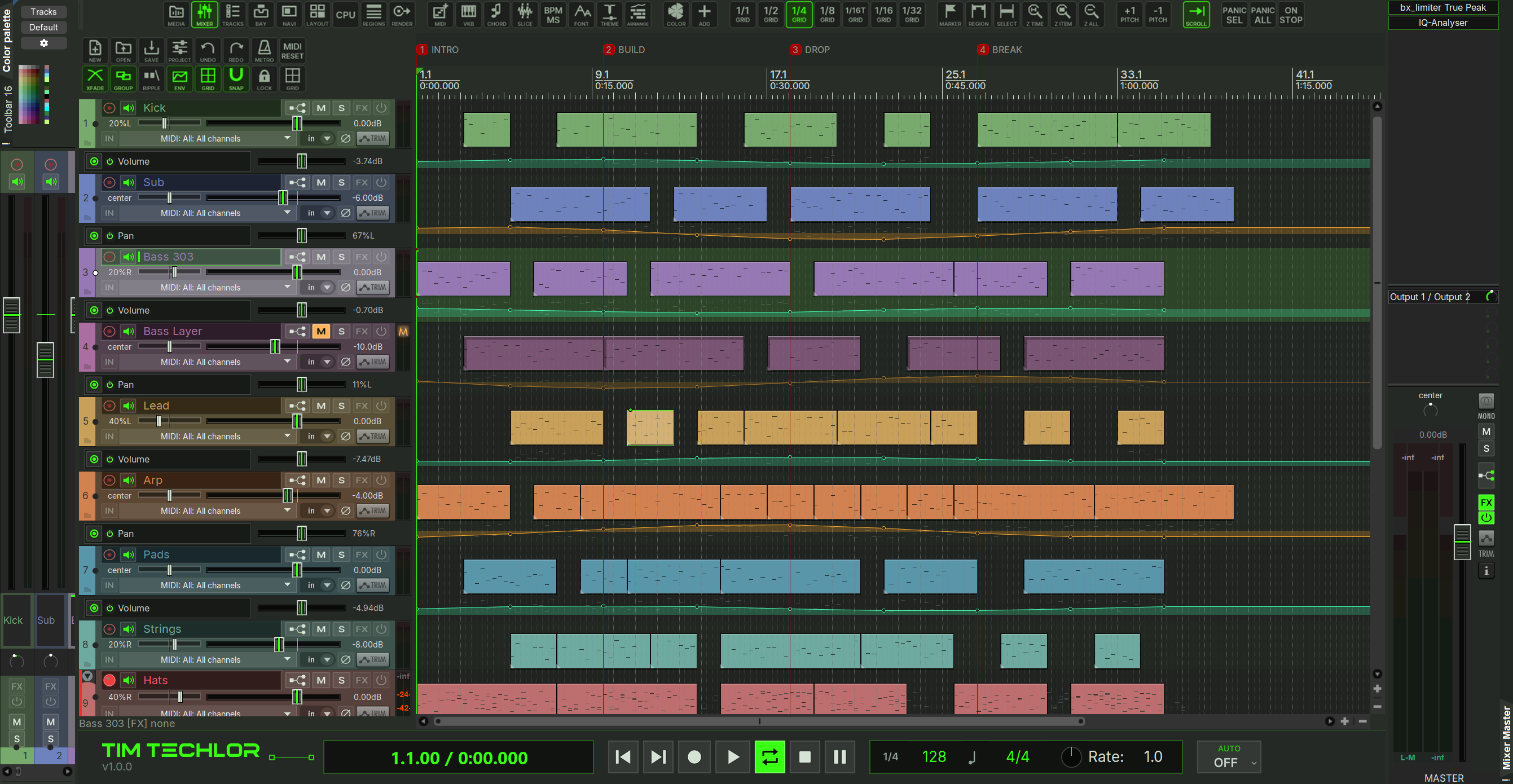
How bright the item bodies are (unselected and selected separately) is a slider in the adjuster — see TEXT AND ITEMS below.
06The Theme Adjuster
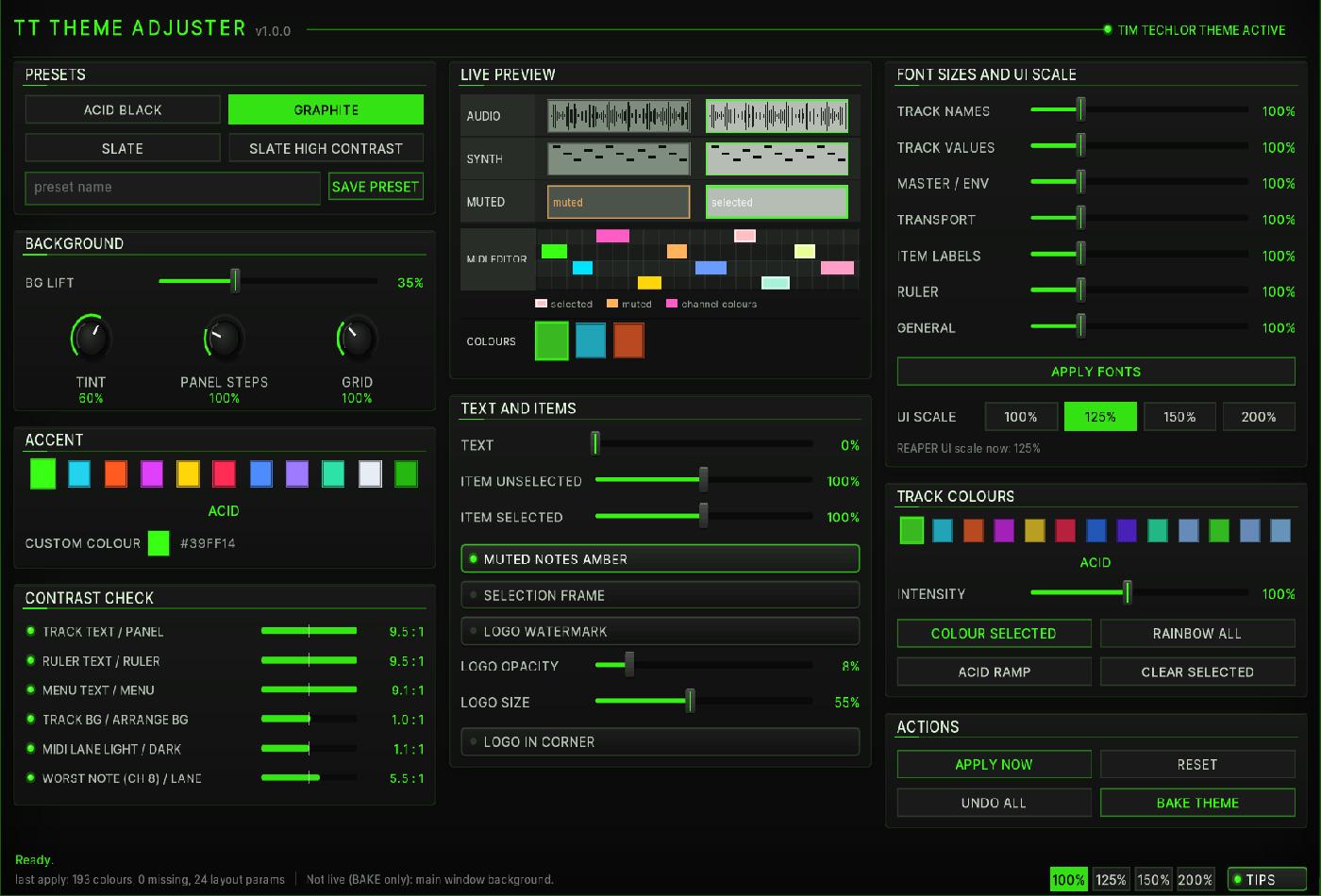
Start it like any action. The window header reads TT THEME ADJUSTER with the version, and an LED tells you whether the Tim Techlor theme is the active REAPER theme: TIM TECHLOR THEME ACTIVE (green) or THEME NOT LOADED (amber — select the theme first; nothing is applied until then). A TIPS switch toggles the tooltips (on by default; they appear after a third of a second, like OPTIONS → TOOLTIPS in the plugins). If the drawn surface ever fails, the window falls back to a plain classic view with the same controls.
The window has three columns of panels; the scale follows the window size, and
the footer offers fixed steps of 100/125/150/200 % as well. The footer also
shows a status line and the counter of the last apply
(last apply: N colours, N missing, N layout params) — “missing”
counts colour keys REAPER would not take live.
Everything you change is applied live (through
SetThemeColor and layout parameters) and remembered by REAPER
(ext state). Live colours are lost when REAPER closes; they come back on the
next start only through the startup script (TT_ThemeAdjuster_Apply.lua
as SWS startup action) or permanently through BAKE THEME. The theme file on disk
is written only by BAKE THEME and by APPLY FONTS.
PRESETS
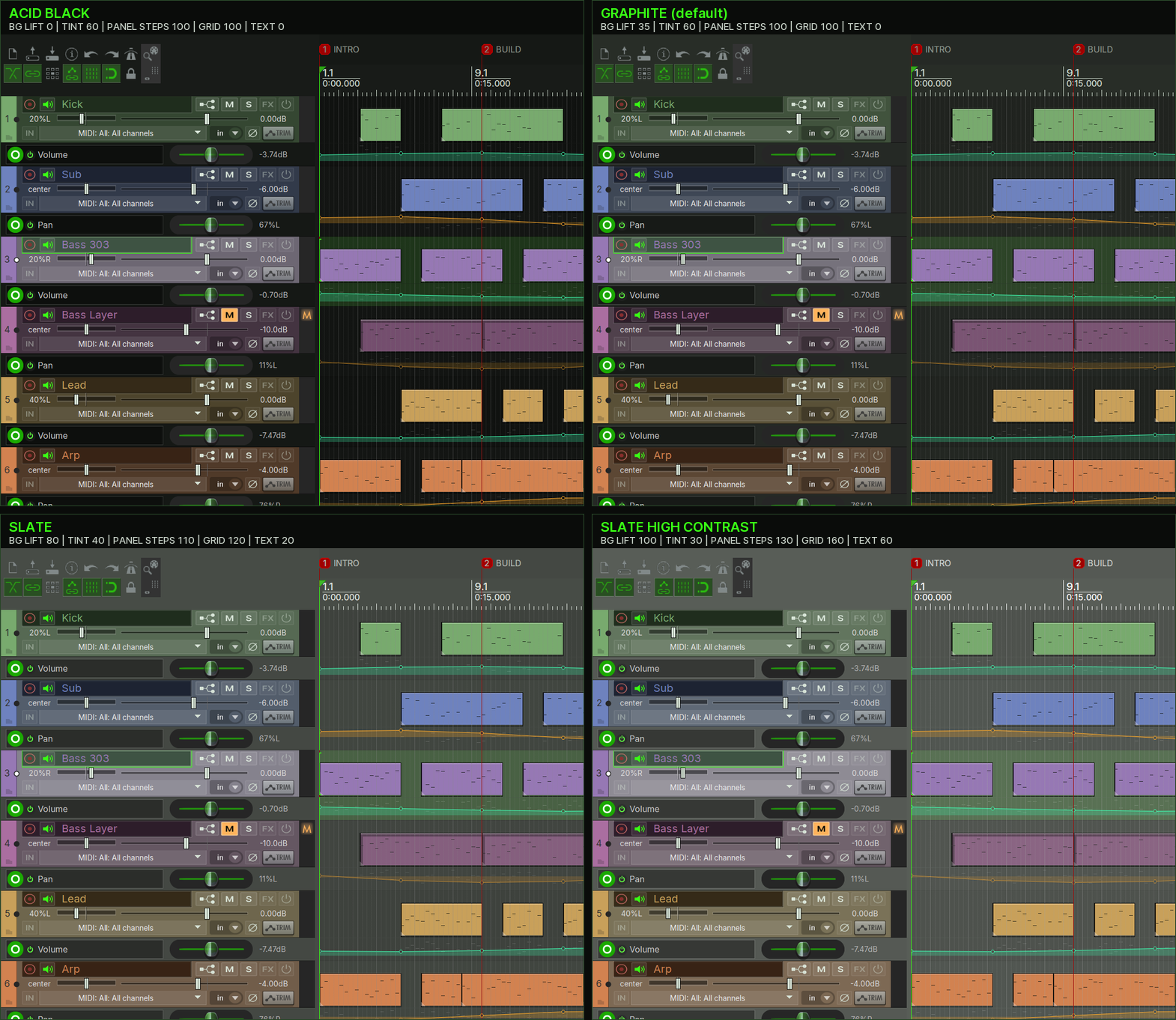
Four built-in presets set the background scheme in one click: ACID
BLACK (black background), GRAPHITE (the default,
lifted graphite), SLATE and SLATE HIGH CONTRAST
(lighter backgrounds, stronger steps). Presets only change background, grid and
text values — accent, item brightness and so on stay as they are. Type a name
and press SAVE PRESET to store everything (all values) as your
own preset in tt_themeadjuster_presets.txt in the REAPER resource
folder; load it by clicking its chip, delete it with the X beside it.
The four presets side by side in the same demo project (layout A). Each tile names the preset and lists the five values it sets:
The same four states in the PRESETS and BACKGROUND panels: the clicked preset lights up and the BG LIFT slider and the TINT, PANEL STEPS and GRID knobs move to its values.

BACKGROUND and GRID
- BG LIFT (0–100) raises the whole background from black to slate grey.
- TINT (0–100) mixes the accent colour into the grey surfaces (0 = neutral grey).
- PANEL STEPS (50–250) sets the brightness distance between the surface levels: arrange, track panel, borders, hover.
- GRID (0–300) sets the contrast of grid lines and dividers in the arrange view and MIDI editor.
The adjuster checks whether REAPER really accepts a live grid change. If the status line reports that REAPER keeps the old line mode, use BAKE THEME to see the grid value.
LIVE PREVIEW
A miniature arrange view and MIDI editor drawn with the current values: audio and MIDI items unselected, selected and muted, MIDI notes in channel colours (selected lighter with a white frame, muted amber) and three track colours in the current style. Use it to judge a setting before it lands in REAPER.
ACCENT
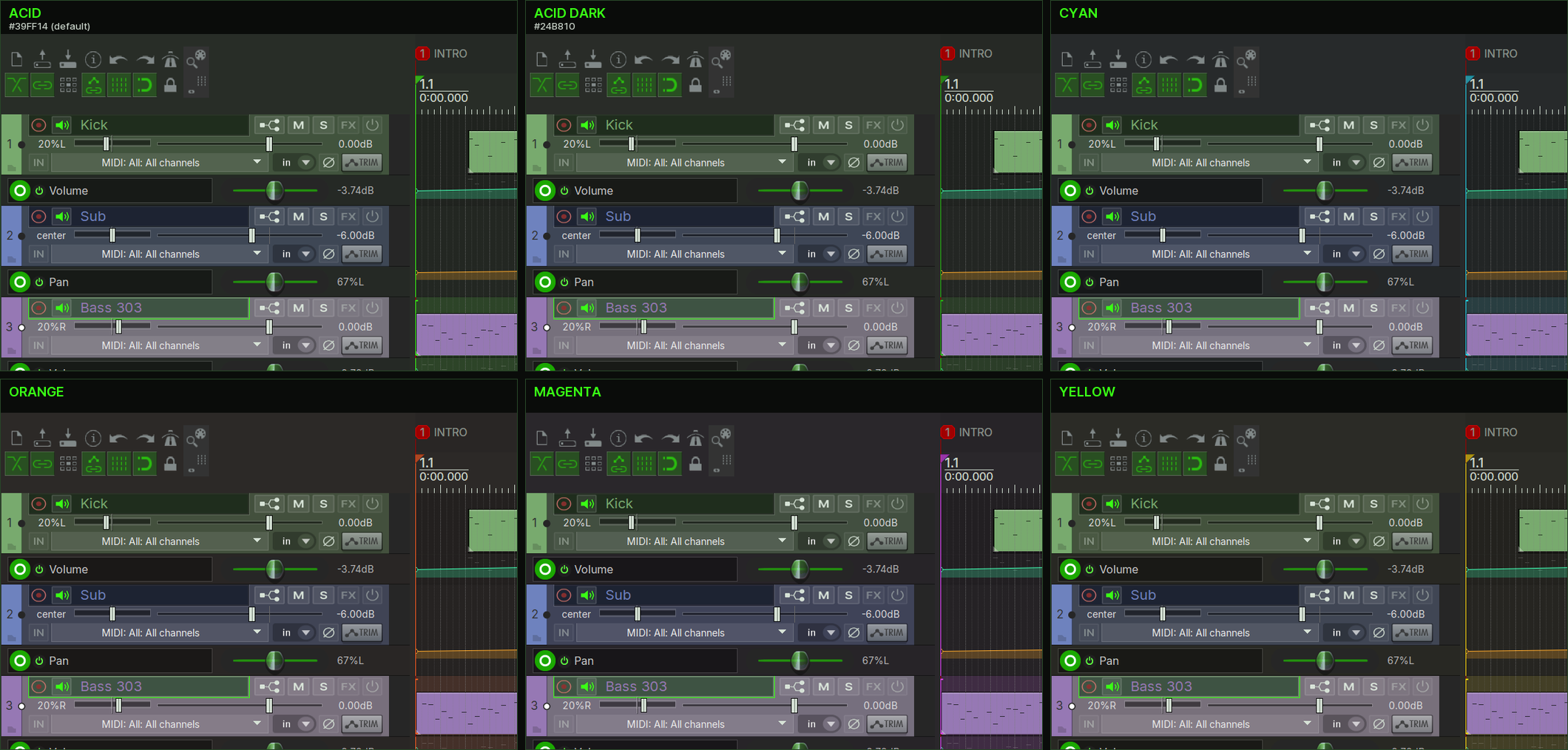
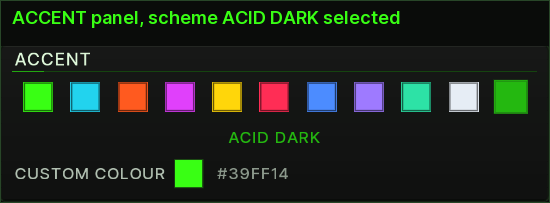
Eleven accent schemes as chips: ACID (the brand default,
#39FF14), CYAN, ORANGE, MAGENTA, YELLOW, RED, BLUE, VIOLET, MINT,
ICE and ACID DARK (#24B810, a calmer, darker green
variant when you want less luminous active surfaces). The colour swatch below
(CUSTOM COLOUR) picks any free colour and overrides the scheme;
click a scheme chip to go back.
Live, the scheme drives the colour-keyed parts of the theme: the edit cursor and the start marker at the ruler, the tint of the selected track's lane, the item selection outline and the accent in the Adjuster itself. The flat button images (M, S, FX, record, transport) are bitmaps inside the theme and keep the brand green in the live view. The tiles below show six of the eleven schemes on the default GRAPHITE background; look at the ruler marker at 1.1 and at the lane of the selected track Bass 303.
Fader caps, 0 dB lines and the transport field images follow the build, not a live accent change. The accent index line in the fader caps is a bitmap. It keeps the accent the theme images were built with (acid green as delivered). BAKE THEME writes the colour keys into the adjusted theme file and reuses those same images, so it does not repaint the caps either. The 0 dB lines and the transport field images (the BPM, time-signature and rate fields, and their group plate) are built the same way: they stay on the acid-green build and on the LCD ground of the default background lift. A strong BG LIFT can leave those fields a step off the live LCD. The live accent keeps driving the colour-keyed parts listed above (ruler, selection marks, selected-lane tint) and the thin rail of the volume control. The meters keep their green, yellow, orange and red ramp regardless of the scheme.
TEXT AND ITEMS
- TEXT (0–100) — text brightness from the brand ink to white.
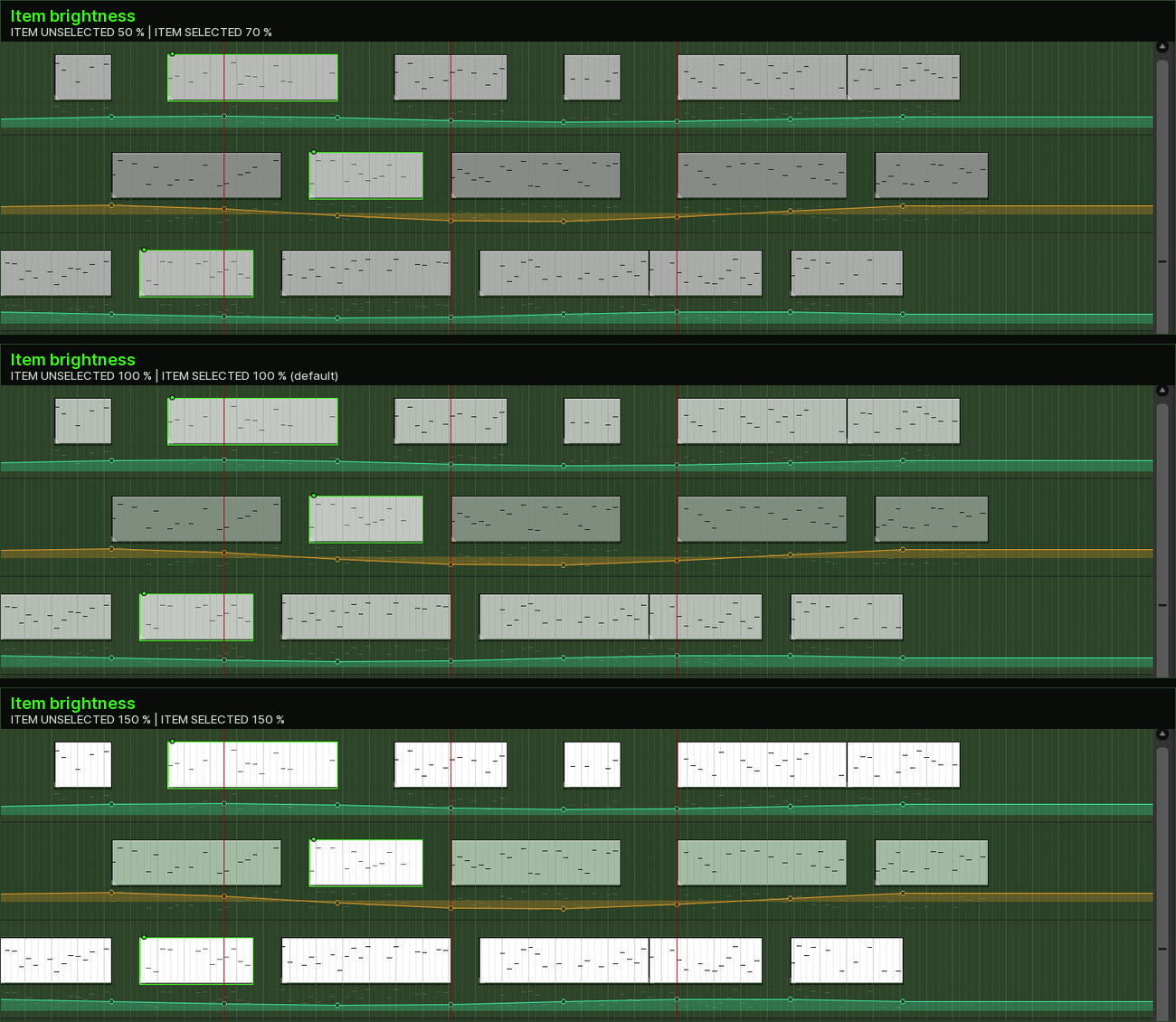
- ITEM UNSELECTED / ITEM SELECTED (50–150) — brightness of the item bodies, separately for the two states.
- MUTED NOTES AMBER — muted MIDI notes in amber (on, default) or red (off).
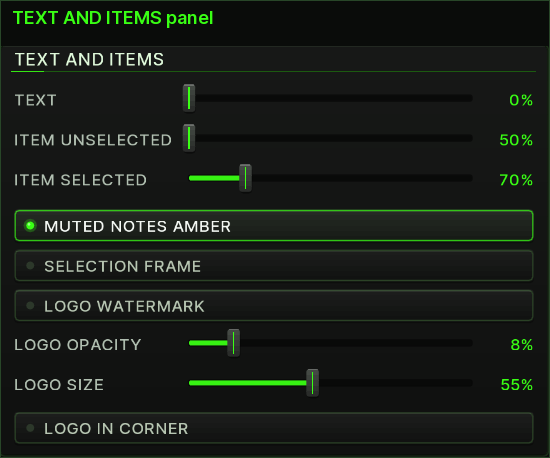
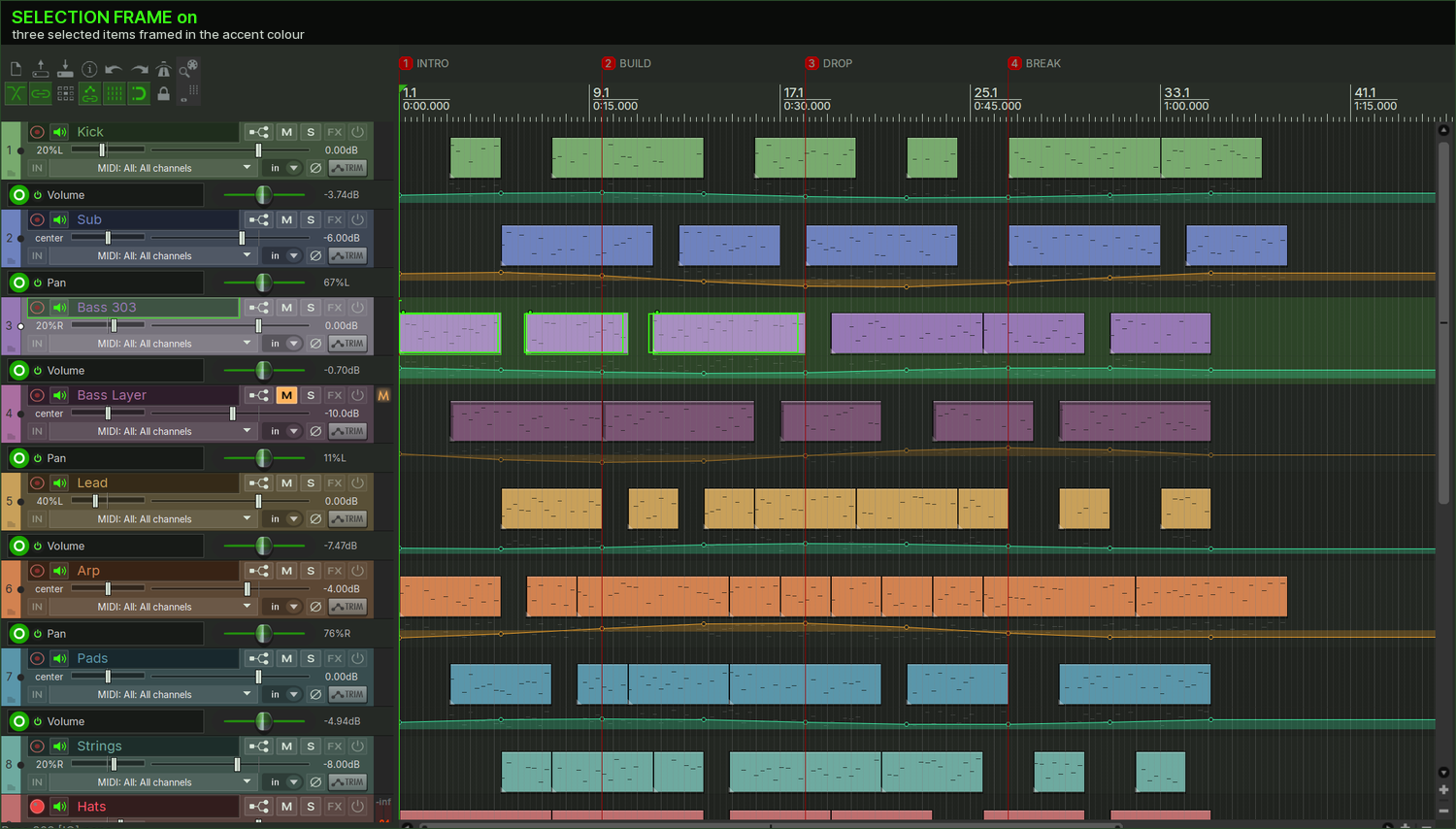
- SELECTION FRAME — frames selected items in the arrange view: accent for normal items, amber for muted, blue for locked, violet for frozen tracks. The script draws it through js_ReaScriptAPI. It is not a theme colour. It is off by default and frames up to the first 400 selected items. It stays up while the adjuster window is open, and also across restarts when the startup action is set and this switch was left on.
- LOGO WATERMARK — lays the T logo
(
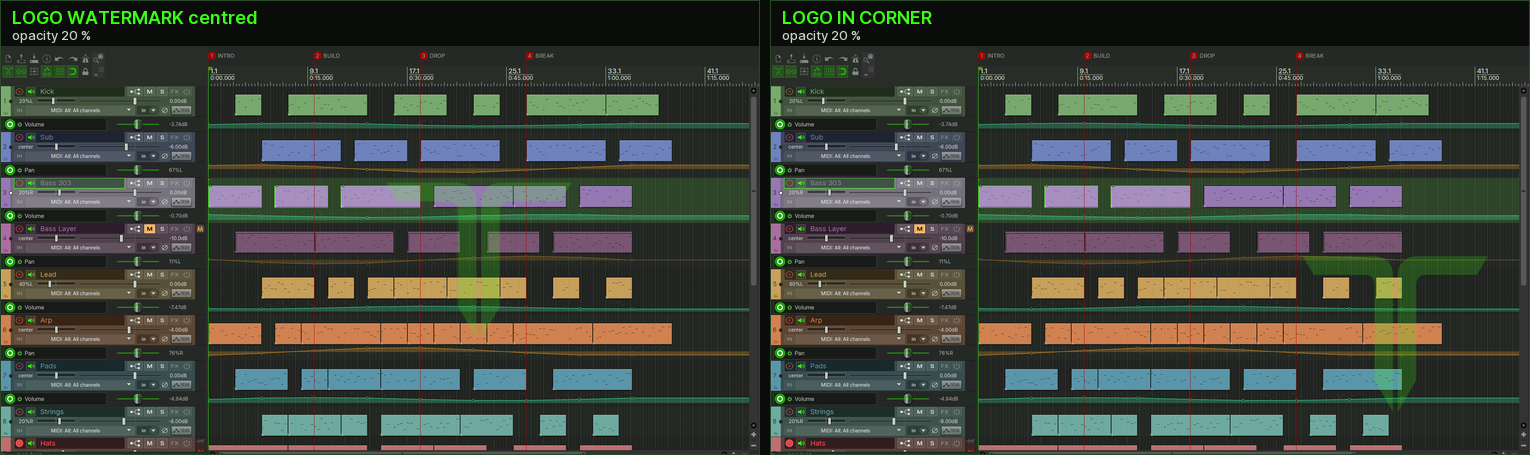
TT_Logo_T.png) at low opacity over the arrange stage, centred or in the bottom right corner (LOGO IN CORNER), with LOGO OPACITY (2–40 %) and LOGO SIZE (20–100 % of the arrange height). The same kind of overlay: it sits above items, so keep the opacity low. Off by default. It is drawn while the adjuster window is open, or by the startup action when the switch was left on.
The TEXT AND ITEMS panel holds the text brightness, the item brightness for both states, the muted-note colour and the two overlays:
Item brightness. Three settings on items without their own colour (the demo tracks were reset with CLEAR SELECTED first; one item per track is selected): at 50 / 70 % the bodies turn dark grey, at the default 100 % light grey, at 150 % almost white. Items that take their colour from the track, as in the other figures, show little change here. The two sliders are independent: unselected items and the selected ones get their own value.
Selection frame. With SELECTION FRAME on, selected items in the arrange view get a frame in the accent colour (three items selected here):
Logo watermark. The T logo centred on the arrange stage or, with LOGO IN CORNER, in the bottom right corner. Shown at 20 % opacity so the effect is visible in the manual; the default is 8 %.
TRACK COLOURS
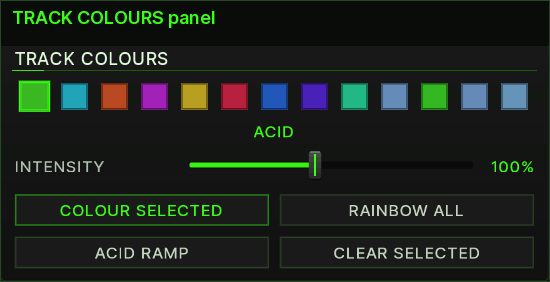
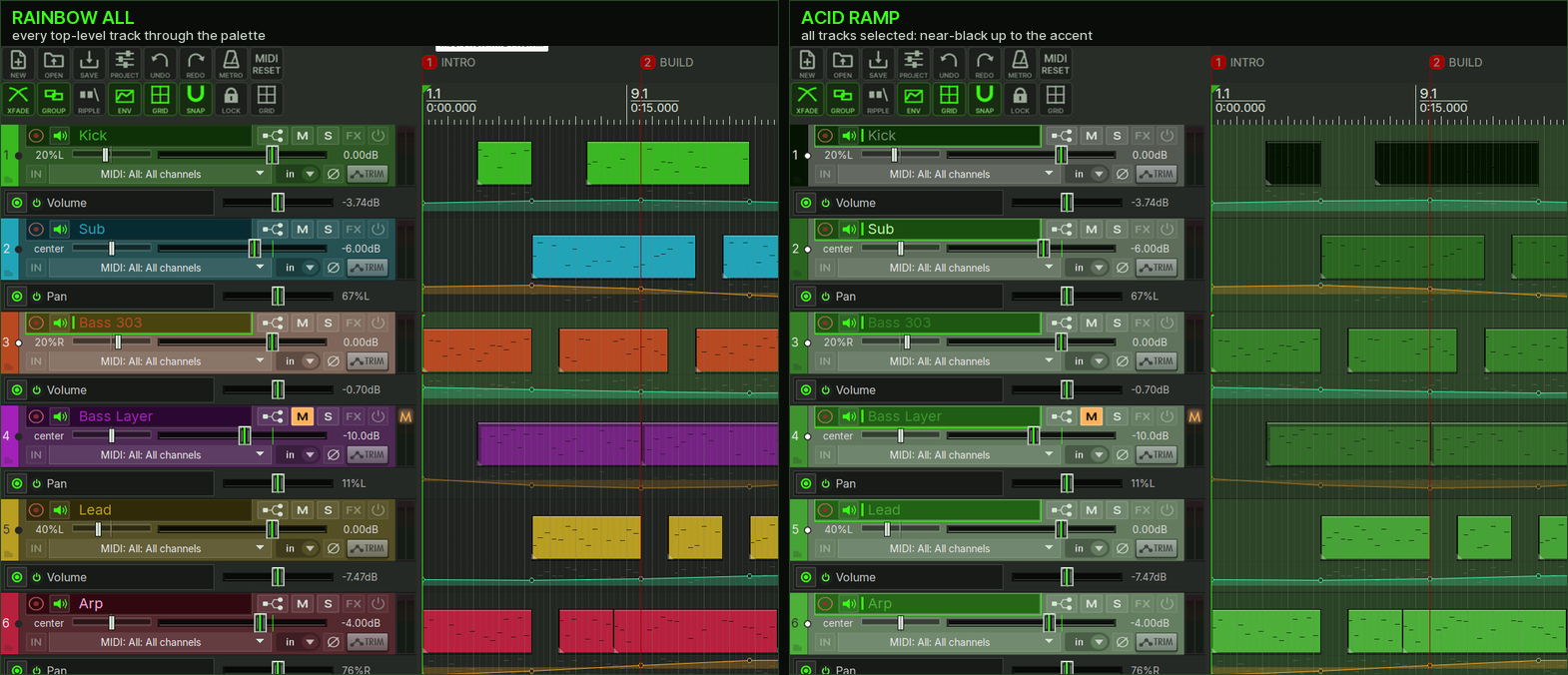
Thirteen palette colours (the eleven accent schemes including ACID DARK plus the neutrals GRAPHITE and FROST). Click a chip to pick it, set INTENSITY (20–200 %) to scale saturation and brightness — light text stays readable — then use the buttons: COLOUR SELECTED paints the picked colour onto the selected tracks, RAINBOW ALL colours all top-level tracks through the palette (folder children get a darker shade of their folder), ACID RAMP colours the selected tracks in a gradient from dark to light accent (with a grey or near-grey accent it falls back to acid green, since grey alone gives no gradient), CLEAR SELECTED resets the selected tracks to the theme default.
The TRACK COLOURS panel shows the thirteen palette chips, the INTENSITY slider and the four buttons. RAINBOW ALL and ACID RAMP on the demo project:
FONT SIZES AND UI SCALE
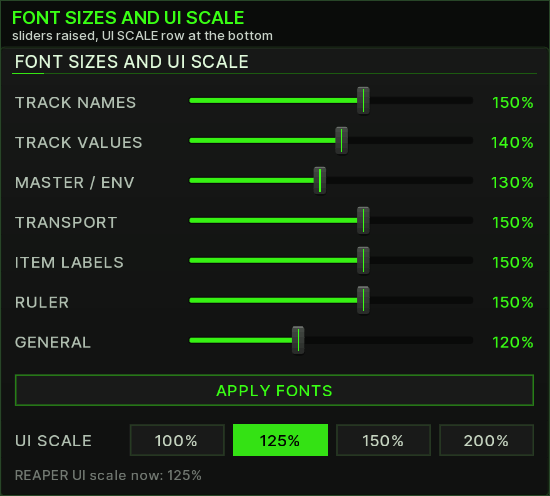
Seven sliders scale the theme's font groups between 70 and 200 % of the
theme size (minimum 12 px): TRACK NAMES, TRACK
VALUES (volume, pan, FX and send lists), MASTER / ENV
(master names, envelope labels, time signature, transport rate),
TRANSPORT (the big time display), ITEM
LABELS, RULER and GENERAL (all
remaining theme fonts). APPLY FONTS writes the sizes into
Clean & Flat Acid (Adjusted) and reloads the theme — this also happens
automatically about 1.2 s after your last change, and the button shows
(PENDING) until then.
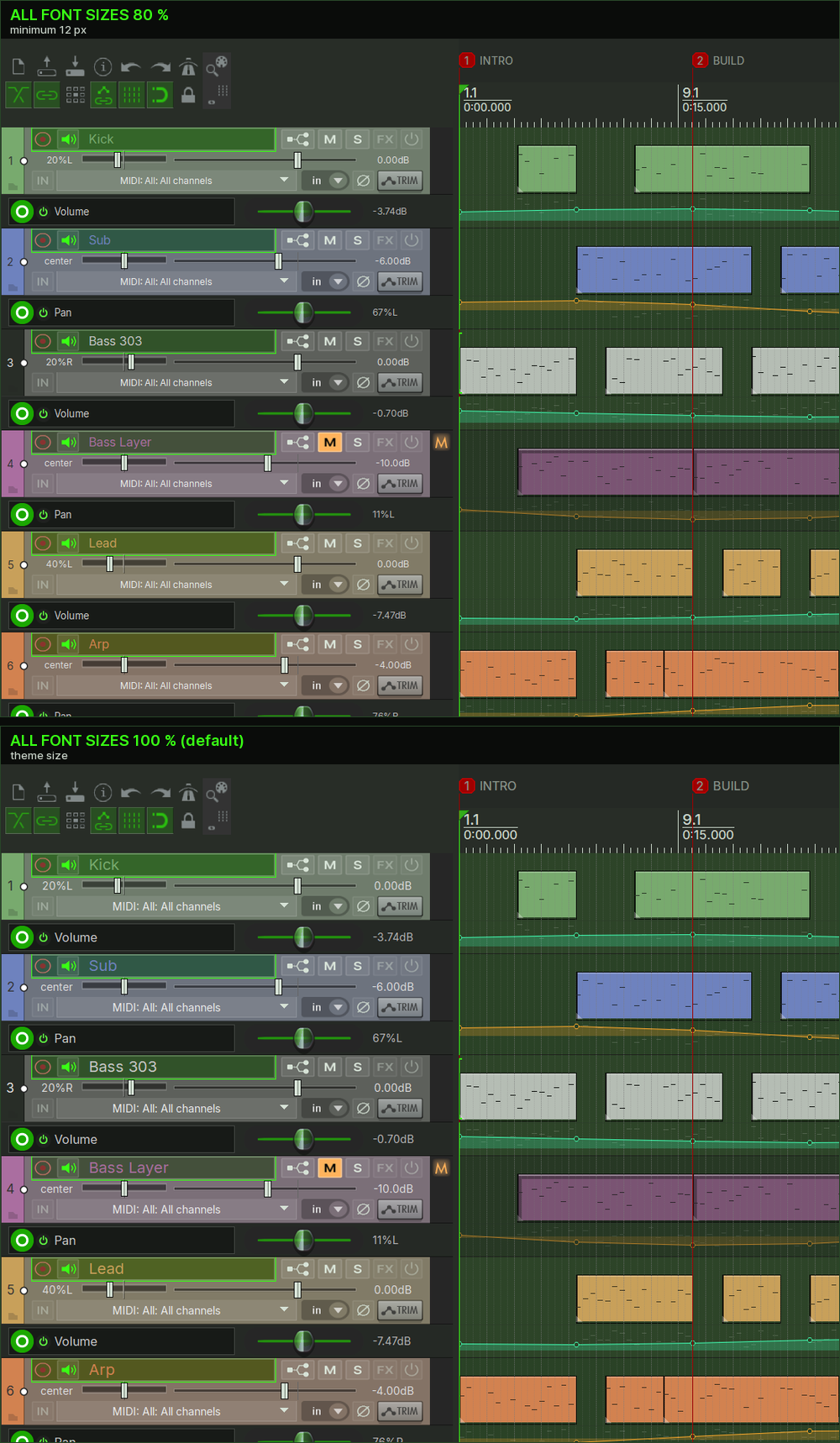
The same track list at 80 % and at 100 % of all font groups: names, values, item labels and ruler all shrink together.
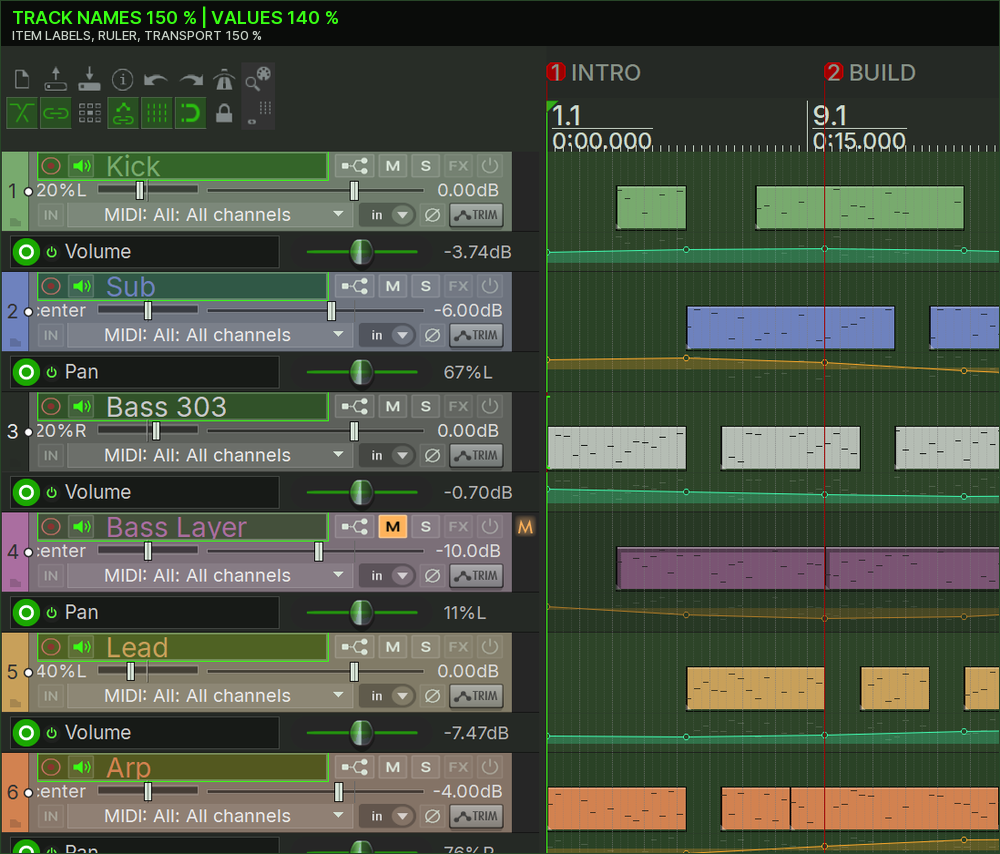
With TRACK NAMES and ITEM LABELS raised to 150 % the track names, the ruler numbers and the transport time grow, while the layout stays in place.
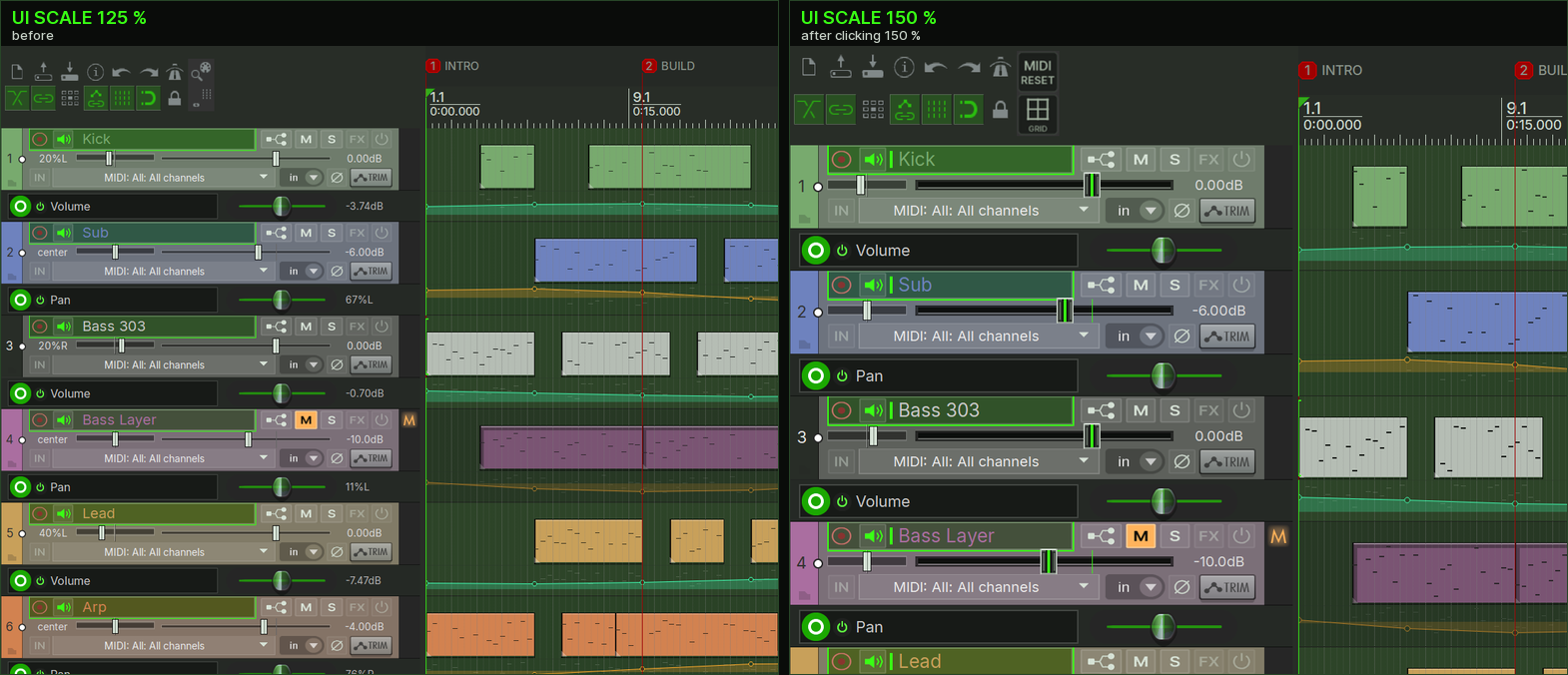
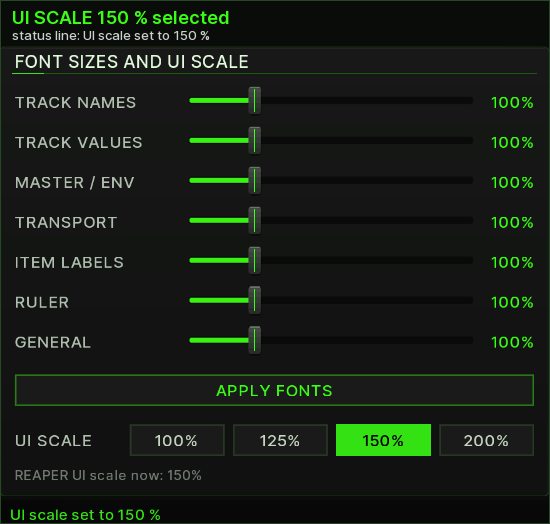
UI SCALE sets the REAPER UI scale to 100/125/150/200 % (through SWS). A REAPER restart may be needed for it to take full effect.
Clicking 150% rescales the whole REAPER interface at once, the track panel, toolbars and ruler: everything grows by a fifth compared with 125 %, and the Adjuster confirms it in its status line.
CONTRAST CHECK
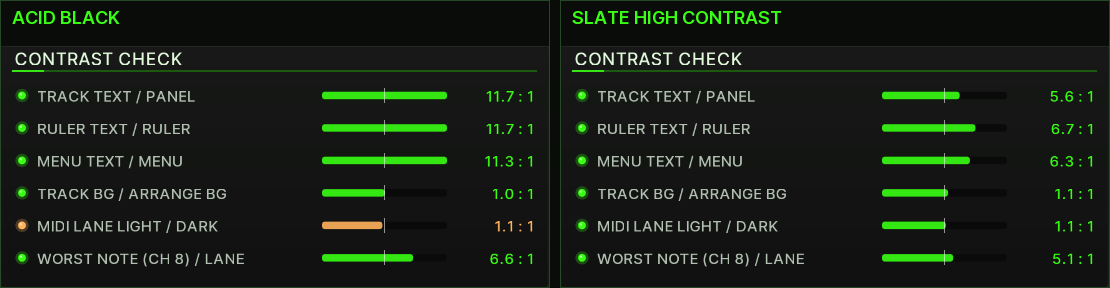
One row per checked colour pair: name, the computed contrast in n:1, and a bar with a white tick marking the required minimum (the bar is full at twice the minimum). Green LED and green number = OK; amber = below the requirement. The check recomputes live, so you can lift the background until everything passes.
How the contrast rows react: on ACID BLACK the lane and track backgrounds sit close together, on SLATE HIGH CONTRAST the pairs move apart and the ratios change. A pair below its requirement turns amber.
APPLY NOW / BAKE THEME / RESET / UNDO ALL
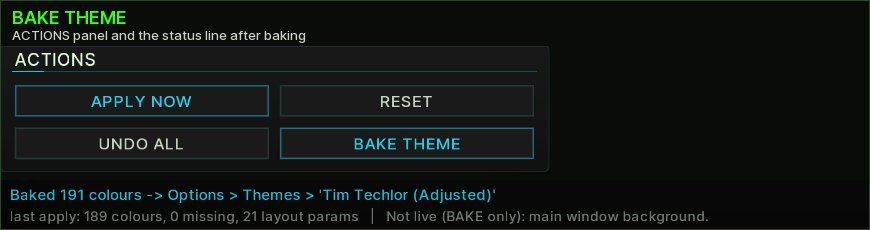
- APPLY NOW — apply everything again, including the track/mixer background layout parameters.
- RESET — back to the GRAPHITE defaults.
- UNDO ALL — reload the theme file; all live adjustments are dropped and the adjuster returns to its defaults. It does not reset the REAPER UI scale (set it back with the UI SCALE buttons) or track colours you assigned (use CLEAR SELECTED or REAPER's own track colour menu).
- BAKE THEME — write the current colours into a new theme
file
Clean & Flat Acid (Adjusted)that survives restarts. It does not switch to it: select Clean & Flat Acid (Adjusted) once under Options → Themes.
Window scaling. The panel surface scales with the window size (three columns wide, one column high); the footer buttons set fixed steps of 100/125/150/200 % (capped at 850 px height at 100 %).
Startup variant. TT_ThemeAdjuster_Apply.lua
re-applies the last saved values (colours and layout parameters) without
opening a window. Set it up once with the SWS action “Set global startup
action” (or call it from Scripts/__startup.lua). You only need it
if you do not bake: a baked Clean & Flat Acid (Adjusted) theme already
contains the colours.
07Mixer and Master
The mixer strips follow the same rules as the track panel: flat square buttons, grey → acid green states, amber mute, red record arm.
- In normal and intermediate strips, record arm and monitor sit above the fader, meter and fader end flush under them, and the name plate sits at the bottom in a darker shade of the track colour.
- In the narrow strip, the rows stack in a fixed order from the bottom (index, M/S, FX, pan, label, meter, volume, record); volume gets whatever space is left, and mute/solo/FX/record stay visible at any width.
- The master mixer panel rebuilds its sections from the actual strip width, so the button column on the right stays inside the panel at every width; the name plate runs the full width with the meter directly above it.
- The master track panel in the arrange view uses the same fixed rows as a normal track (name and M/S/FX/IO, pan and volume with value, envelope and mono row) with the meter running the full height on the right.
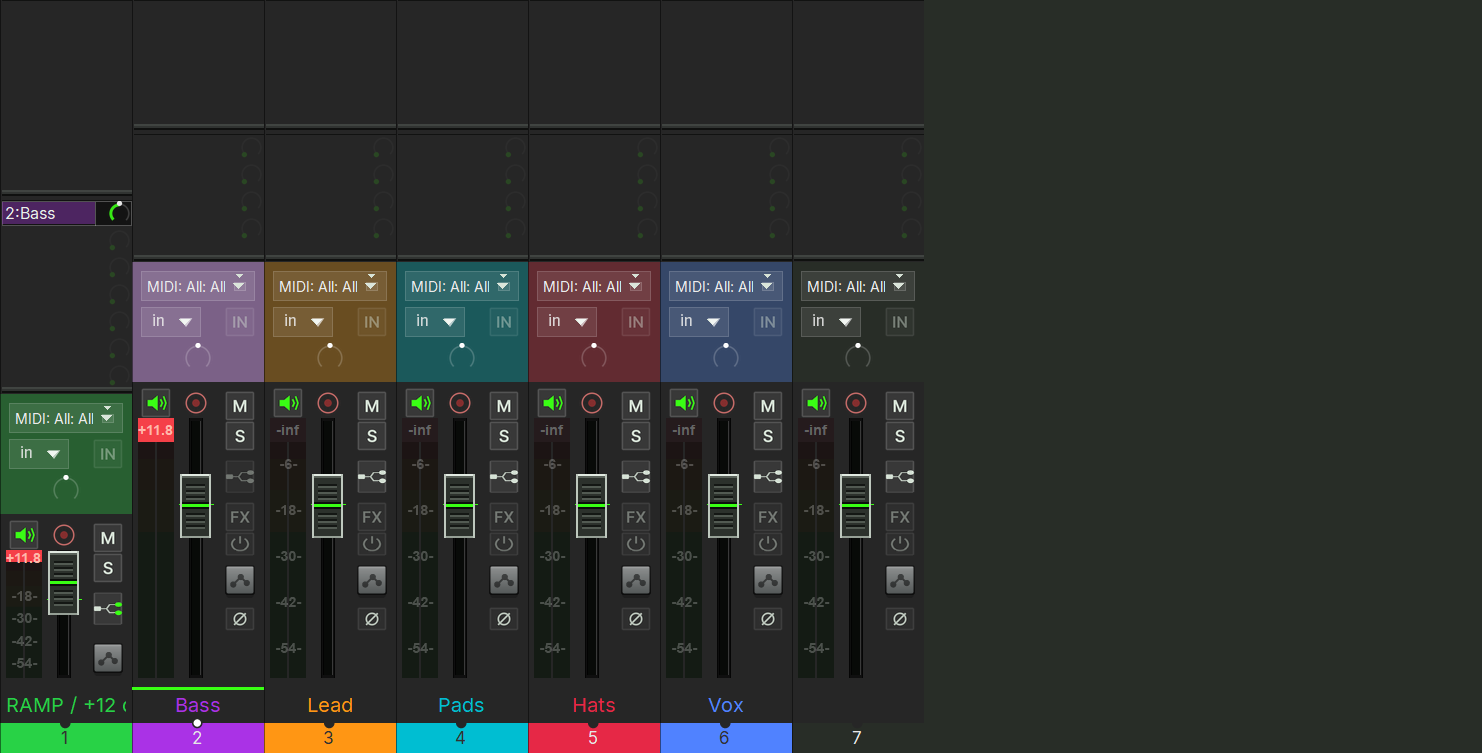
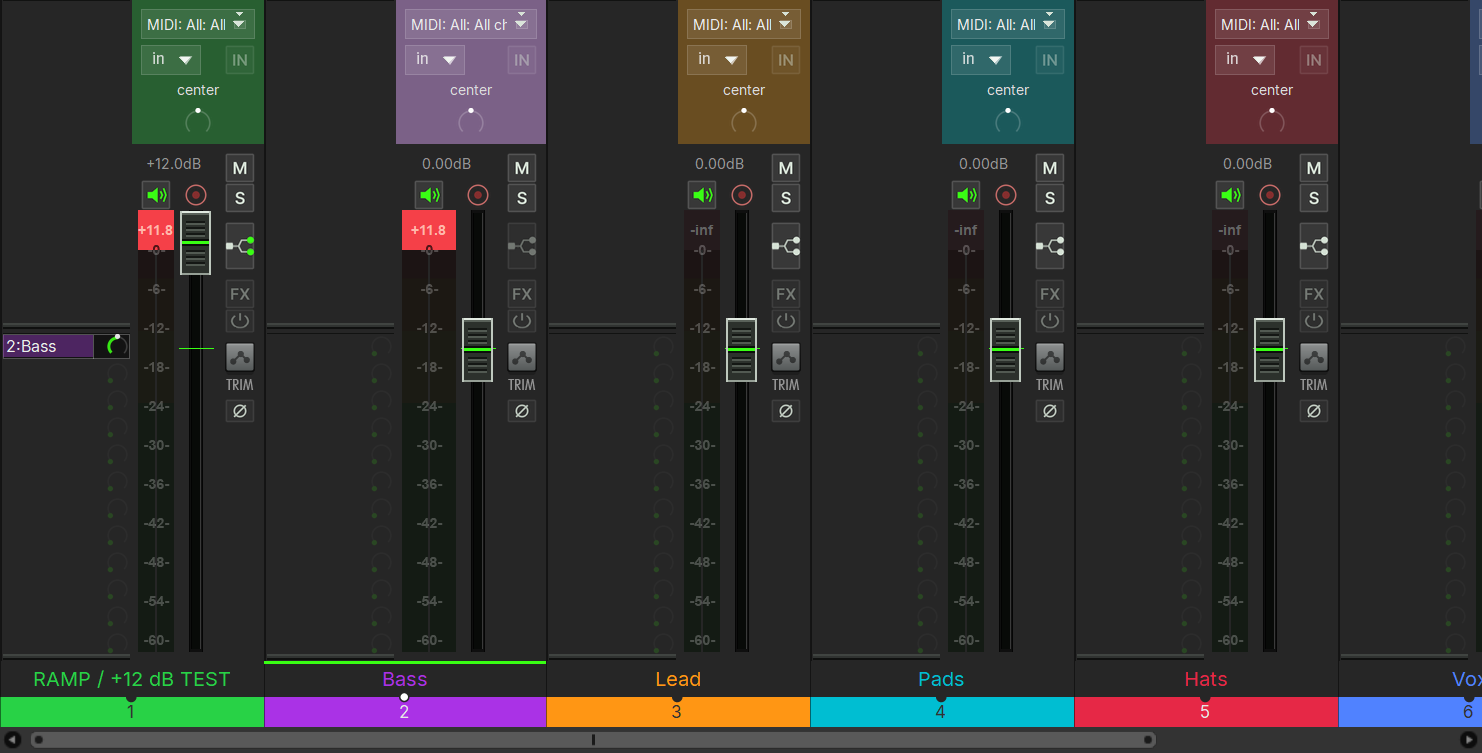
The layout geometry was verified offline for 82 width/height cases across A/B/C (no overlapping controls) and the envelope control panels for nearly two thousand cases; the screenshots above come from REAPER 7.81.
08Known limits
- No animation. REAPER themes cannot animate controls; the theme deliberately does without it.
- No background image slot in the arrange view. REAPER
themes do not offer one. The logo watermark is an overlay the script draws
through js_ReaScriptAPI. It is on screen while the adjuster window is open.
With
TT_ThemeAdjuster_Apply.luaset as the startup action, it also stays up across restarts when the switch was left on. The startup action does not open a window, and it draws nothing while the switch is off. - SELECTION FRAME and LOGO WATERMARK are overlays over the arrange view, drawn by the script, not theme colours. They need js_ReaScriptAPI, and they sit above items. Same lifetime as the paragraph above: the open adjuster, or the startup action with the switch on.
- GRID live is uncertain. REAPER may not accept a changed grid draw mode live; the adjuster notices this and tells you to use BAKE THEME.
- Menu and MIDI editor fonts are not in the theme file.
Fonts without their own group in the theme ini (for example
main_font,list_font,header_font) cannot be changed by the font sliders. - Verified environment: Windows, REAPER 7.81. Checked in a fresh portable installation and in an existing one, including restarts. macOS, Linux and other REAPER versions were not checked.
- Below 100 % UI scale the theme is not checked. At 125 % REAPER renders the 100 % images (the 150 % layouts kick in from 1.34).
- Live colour keys can be rejected. The footer counter shows how many keys were “missing” in the last apply; those only take effect after baking.
- Two mixer details are set in the theme config, not yet visually
confirmed in REAPER. The gap right of the send knobs
(
mcp.sendlist.margin, shipped value 8) and the strength of the INSERT/SEND area boundaries (fixed square edges with a fine light lip, a dark bevel and a short shadow; the list surface stays neutral grey) were verified in the theme's own layout model and tile images only. If they look off in your REAPER, that is this open point, not your install.
09Troubleshooting / FAQ
The header LED says “THEME NOT LOADED” / the status line says the theme is not loaded. Select Clean & Flat Acid by Tim Techlor in Options → Themes first. The adjuster applies nothing while another theme is active.
Colours revert after restarting REAPER.
Live changes live in REAPER's ext state, not in the theme file. Either press
BAKE THEME once (the adjusted theme then carries the colours),
or install TT_ThemeAdjuster_Apply.lua as your startup action so
the values are re-applied on every start.
“GRID: REAPER keeps the old line mode live …”. REAPER did not take the grid draw mode live. Press BAKE THEME; the baked theme shows the grid value.
The window does not open at all. ReaImGui is missing or older than 0.10 — install it via ReaPack and run the script again.
SELECTION FRAME or LOGO WATERMARK show nothing. Both are overlays drawn through js_ReaScriptAPI — install that extension too. Also check they are switched on (both are off by default), and that the watermark opacity is not at the bottom of its range.
The UI SCALE buttons report “UI scale failed”.
They need the SWS extension (they set the uiscale config variable
through it). Install SWS; a REAPER restart may be needed for the change to
land.
Changing a font slider does nothing. Font sizes are applied by reloading the theme — wait about 1.2 s after your last change, or press APPLY FONTS. Fonts without their own group in the theme ini (menu and MIDI editor fonts, see known limits) cannot be changed at all.
The footer counts “missing” colours. Those colour keys were not accepted live by this REAPER version. Bake the theme to get them; the count is informational, not an error.
Where are my presets stored?
In tt_themeadjuster_presets.txt in your REAPER resource path
(Options → Show REAPER resource path in explorer/finder), one line per
preset.
The text looks wrong / different from the screenshots. REAPER 7 ships the Inter typeface the theme uses; check that you run REAPER 7 and that the theme Clean & Flat Acid by Tim Techlor (or Clean & Flat Acid (Adjusted)) is selected under Options → Themes. Only Windows with REAPER 7.81 was verified. The transport time/status readout uses Segoe UI (Windows standard) on purpose: with Inter it could render with wrong glyphs when another Inter version is installed system-wide. If the size is the problem, use the font sliders and the UI scale in the adjuster.
Where is the theme on the website / in ReaPack? This archive is the download. There is no ReaPack entry and no separate page on the website. The ZIP contains the theme, the adjuster, the toolbar icons, the splash image and this manual.